Jobs window
How to check and control the progress of long-running jobs such as copy, move, and export.
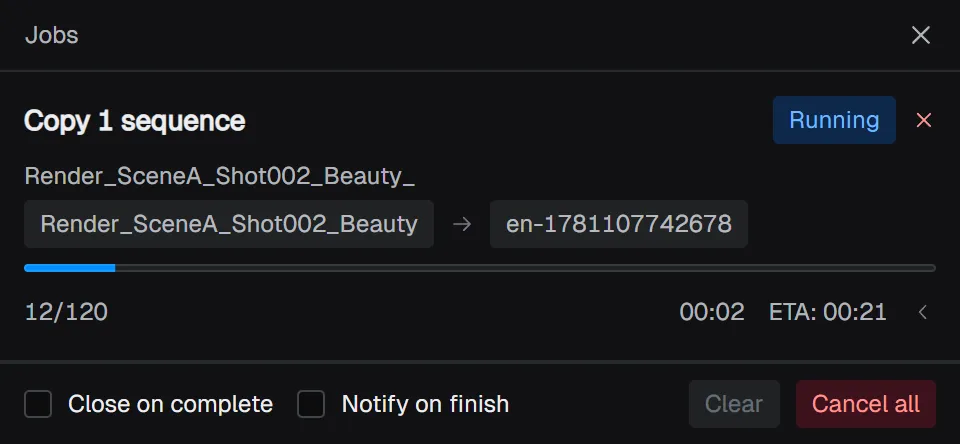
Long-running operations such as copy, move, export, cleaning up empty folders, and generating Quick Play or MP4 files run in the background as jobs. When you start a job, the Jobs window opens automatically so you can follow its progress and log. After you close it, you can reopen it any time from the View → Jobs menu.
Anatomy of a job row
Each row shows the operation, the target (a sequence name, or a source → destination path), a progress bar, the processed count, the elapsed time, and, while running, an estimate of the remaining time. Click a path to reveal the target in Finder / Explorer.
Click the area below the row’s progress bar to expand that operation’s log. Use the copy button to copy the whole log at once.
Completed jobs show actions that depend on the result. For example, after a copy or export you get Open folder, and after generating an MP4 you get Open MP4.
Job states
Each job is in one of four states.
| State | Meaning |
|---|---|
| Running | In progress. The progress bar and remaining time update. |
| Completed | Finished successfully. Result actions are available. |
| Failed | An error occurred. The log shows the error details. |
| Cancelled | Interrupted by a user action. |
When confirmation is needed
When a copy or move finds a file with the same name at the destination, or when moving to the Trash fails, a confirmation prompt appears on the affected job row.
- For a file conflict, choose Skip / Skip all / Overwrite / Overwrite all.
- When moving to the Trash fails, choose Skip / Skip all / Delete permanently / Delete all permanently.
Choosing an “all” option applies the same decision automatically to later occurrences of the same situation.
Window actions
Each job row has a button to remove that job from the list (it cancels the job if it is still running). At the bottom of the window, Clear removes all finished jobs at once, and Cancel all stops all running jobs at once.
When you close the window, Completed and Cancelled jobs are removed automatically.
- Notify on finish — Shows a notification when a job finishes.
- Close on complete — Closes the window automatically once all jobs are Completed. It stays open if any job failed or was cancelled, so you can review what happened.
If you try to close the window while jobs are still running, you are asked whether to Keep running or Cancel jobs. The same happens when you try to quit the app. For important exports or copies, confirm they are finished before quitting the app.