Sign-in and licensing
Signing in through the browser, checking your license, and managing devices.
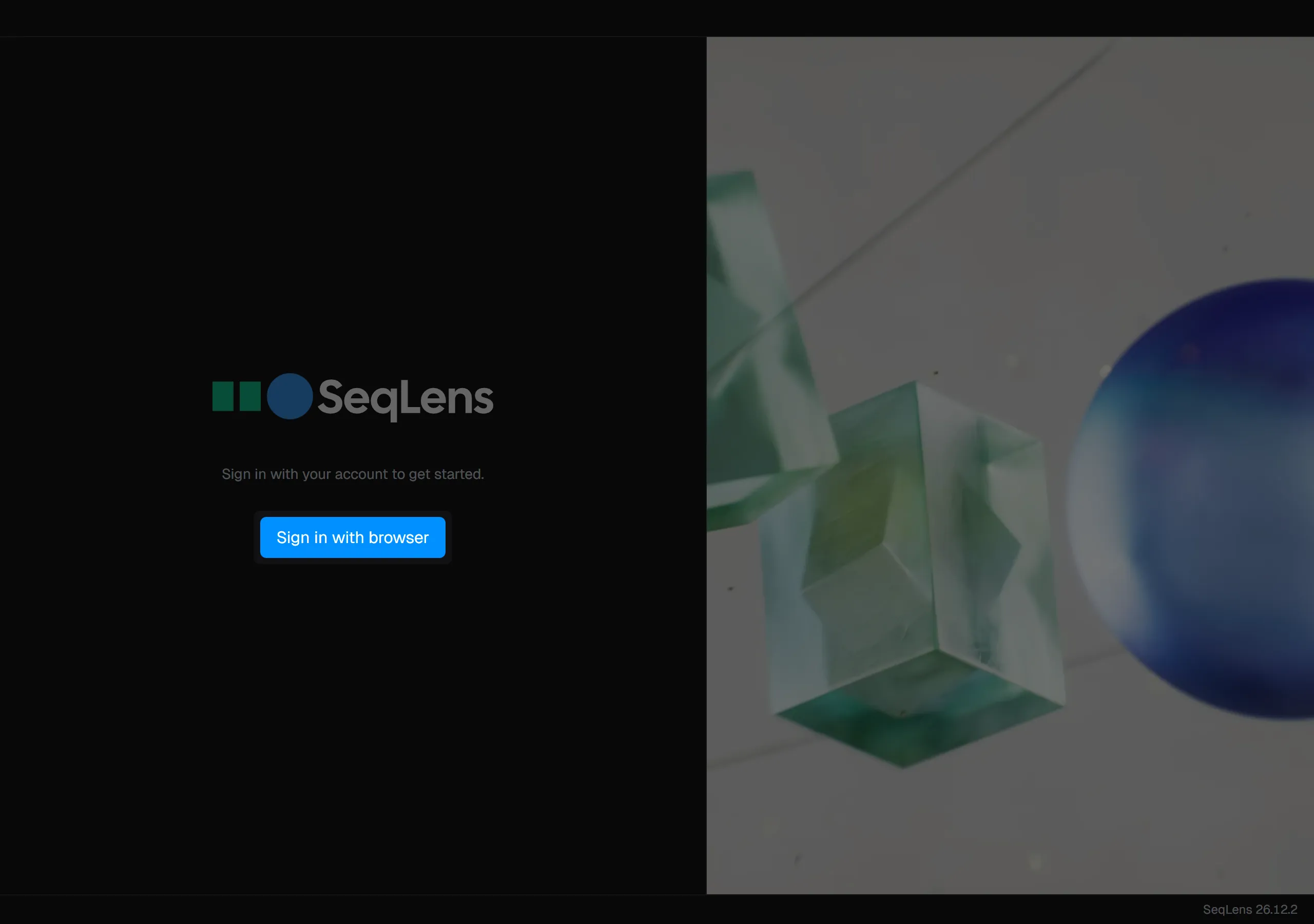
SeqLens sign-in happens in your browser. You do not need to enter a password in the app.
Sign-in steps
Press Sign in with browser to open the authentication page in your default browser. The app shows an 8-character code. Confirm that the same code appears in the browser, then authorize it. The code is usually valid for 5 minutes. If you close the browser, use Open browser again to reopen the same page.
A QR code is also shown on the sign-in screen. Scan it with your phone camera to open the authentication page immediately in your mobile browser.
Once authorization is complete, your license is checked and the main screen opens. If the code expires or a network error occurs, start again with Retry.
Re-sign-in and device limits
When you need to sign in again, the sign-in screen may show the reason at the top. For example, your sign-in information may have expired, or this device may have been removed from your account.
You can manage registered devices at seqlens.app/account. If you have reached your device limit, remove an unused device, then sign in again.
Workspace and license
After sign-in, the workspace name is shown in the window title and in the lower-right corner of the status bar. If you use SeqLens with multiple organizations, check the current workspace there.
You can check license details and device information in the Preferences → Account tab. The card shows the workspace name, license holder, device name, and expiration date. During evaluation use, you may see a guidance dialog. To purchase, open seqlens.app/pricing from Buy Standard license. After purchase, manage your plan and devices at seqlens.app/account.
Sign out
To sign out, open the Preferences → Account tab and press Sign out in the lower-left corner.