Filtering and search
How to narrow sequences down by search, status, and extension.
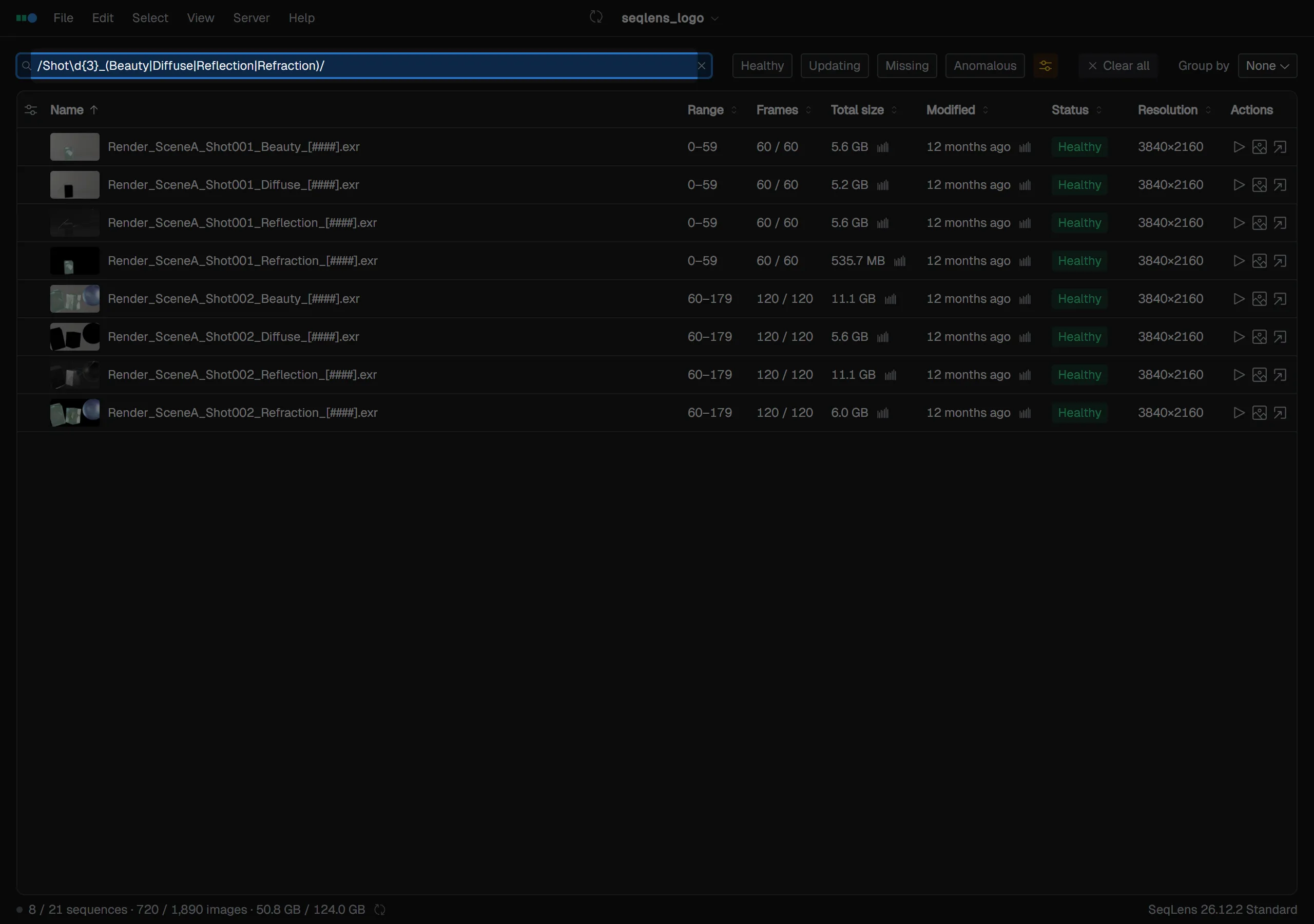
The filter bar lets you narrow the list by sequence name, folder, status, and extension.
Search
The search field (Search name, directory… /pattern/ for regex) can be focused with Cmd/Ctrl+F. File names, directories, and extensions are searched. Enter multiple keywords separated by spaces to keep only rows that match all of them.
To search with a regular expression, enter it as /pattern/ or /pattern/i. The i flag makes the search case-insensitive. While the input is being treated as a regular expression, its background color changes. If the pattern is invalid, it is shown in red and the search falls back to normal keyword search until you remove the slashes or fix the pattern.
Use the × at the right edge of the field to clear the search.
Search history appears as a dropdown when the field has focus. Move between items with ↑↓, confirm the selected history item with Enter, and close the dropdown with Esc. You can delete individual history items with the × button at the right edge of each item. Up to 100 items are kept.
Status and extension filters
In the Status: filter, you can choose Healthy / Updating / Missing / Anomalous. If you choose more than one, rows matching any selected status are shown. If you choose Anomalous while anomaly detection is off, it turns on automatically. On Windows / Linux, you can run the same operations from View → Filter by Status / Filter by Extension.
The Ext: filter shows the extensions in the current project (.exr, .png, and so on). If you choose more than one, rows matching any selected extension are shown.
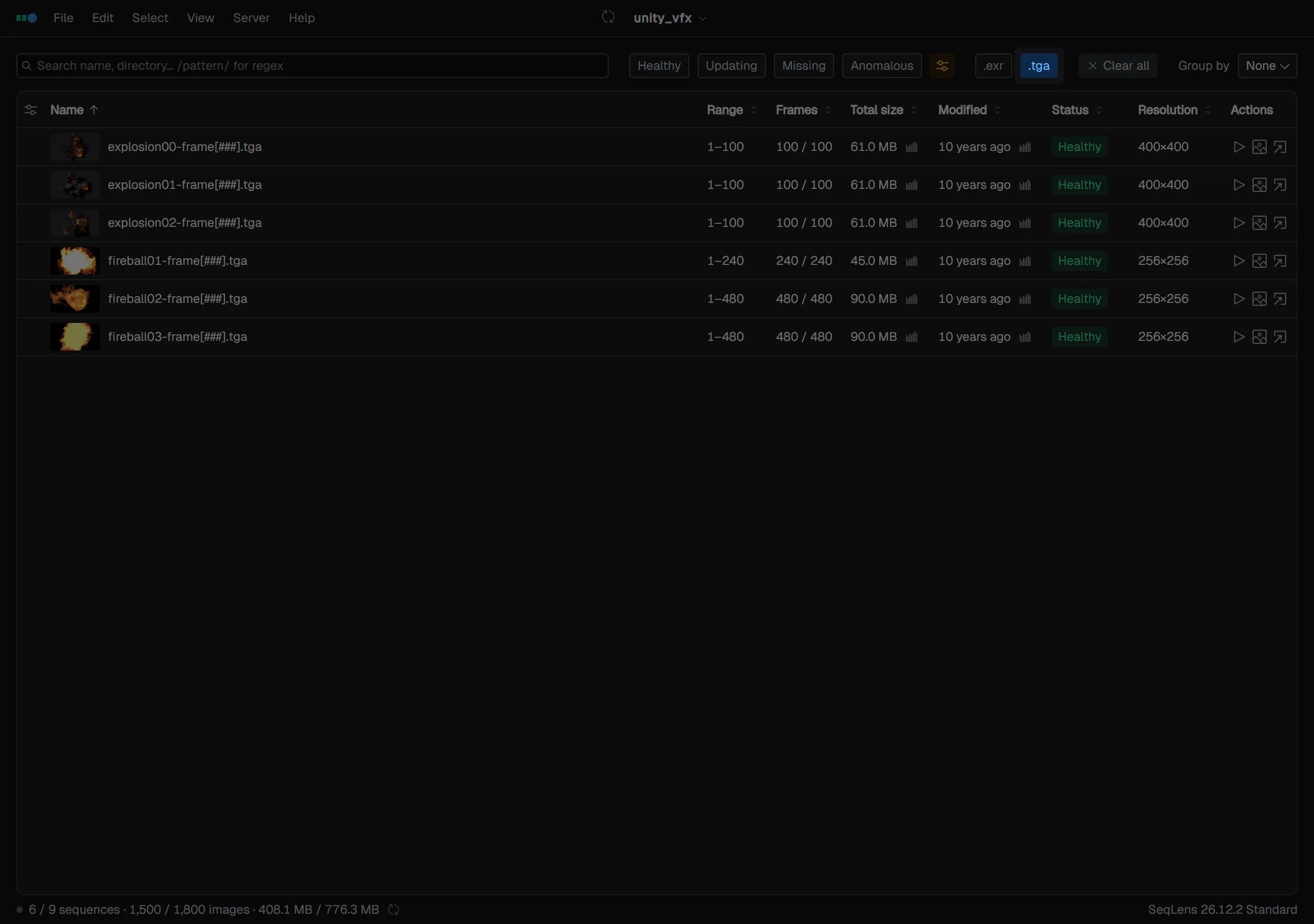
Use Anomaly detection settings to the right to change anomaly detection conditions.
Clearing and persisting filters
When search, status, or extension filtering is active, Clear all appears in the filter bar. Press it to clear all narrowing at once. You can run the same operation from View → Clear Filters.
Filter state is saved and is preserved after restarting the app. Counts are shown in the status bar as “Selected / Filtered / Total”.