Quick start
From signing in to opening a project, inspecting sequences, and exporting.
Step 1. Launch the app and sign in
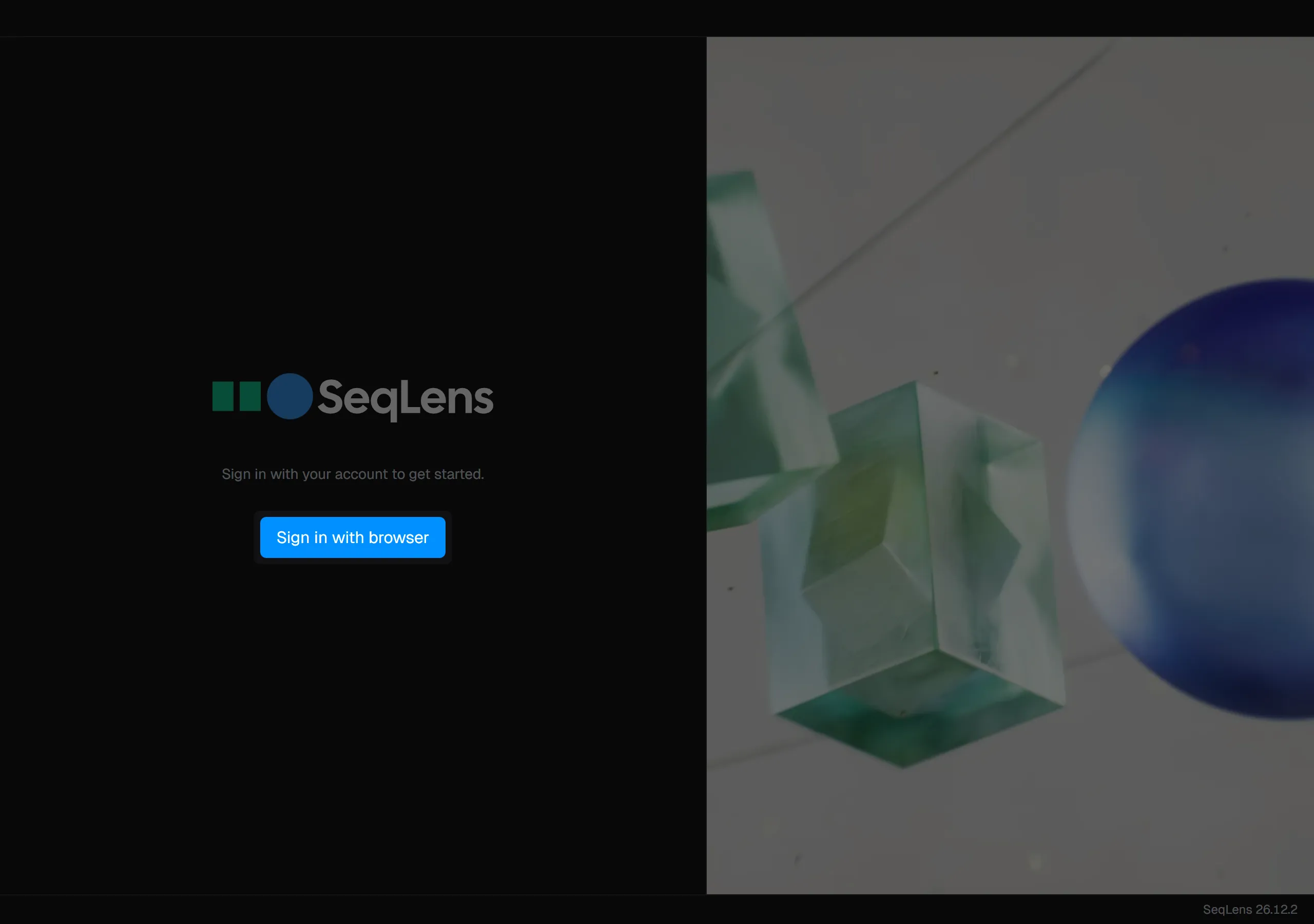
On first launch, the sign-in screen appears. Press Sign in with browser, then confirm and authorize the 8-character code shown in the app from your browser.
The code is usually valid for 5 minutes. Once authorization is complete, your license is checked and the main screen opens.
Step 2. Open a project
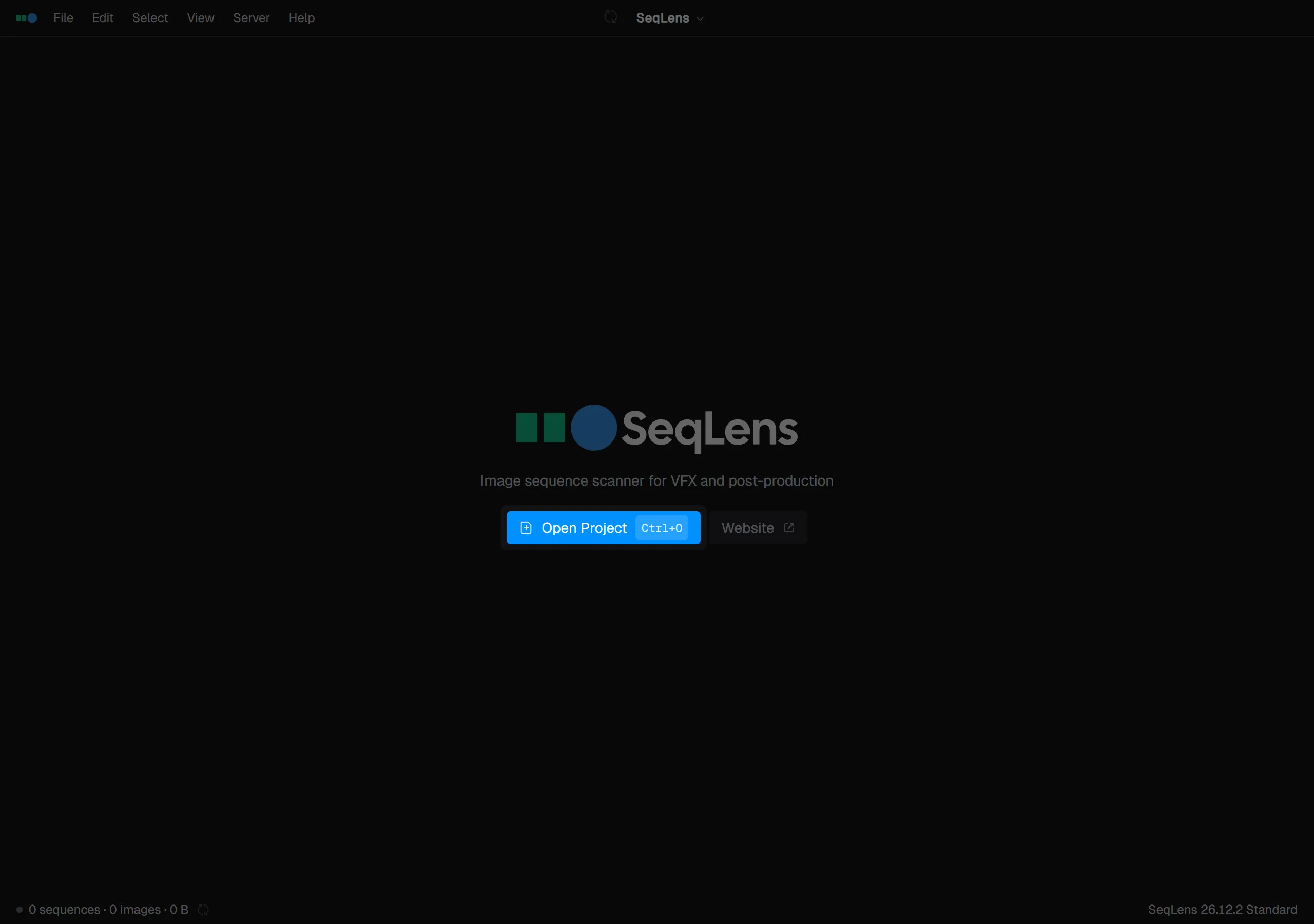
Press Open Project and choose the folder that contains your image sequences. You can also open a folder with Cmd/Ctrl+O, the app menu, or drag and drop from Finder or Explorer. Folders you have opened remain in the recent project list (RECENT) on the Welcome screen.
Other ways to open a folder
You can also hand a folder to SeqLens from outside the app:
- From the command line. Pass a folder path as an argument when you launch the app, for example
seqlens /path/to/sequences. SeqLens opens that folder on startup. - From the system. Drop a folder onto the app, or use your operating system’s “Open With” to send a folder to SeqLens.
By default only one instance of SeqLens runs. If it is already open, launching it again (or passing a new folder path) brings the existing window to the front and opens the folder there instead of starting a second copy. To allow multiple instances, add the -m (or --multi-instance) flag when launching from the command line.
Step 3. Review the sequence table
When you open a project, the folder is scanned automatically and the sequences found inside appear in the table. In the status column, you can check Healthy, Missing, Anomalous, and other statuses. Click a column header to sort, or use the filter bar at the top to search and narrow the list.
Step 4. Preview in Lens
Select one row and press Space to open Lens on the right. In Inspect mode, you can check frames one by one. Select two or more rows and press Space to enter Compare mode and compare sequences side by side. Use the left and right arrow keys to move through frames.
Step 5. Export or copy
Right-click the selected row, or choose a format from the menu. SeqLens supports export to ZIP, MP4, CSV, JSON, PDF, OpenTimelineIO, MHL, and After Effects. CSV / JSON / PDF / OpenTimelineIO / MHL / After Effects are available from File → Export, while ZIP and MP4 are available from the Edit menu or the row right-click menu. Copy, move, move to Trash, and permanent delete are also available from the Edit menu or the row right-click menu.
What to read next
- Basic concepts & UI overview — Projects, sequences, and Lens
- Sequence table — How to read the list, columns, and statuses
- Lens — Inspect mode — Preview and metadata inspection
- Lens — Compare mode — Comparing multiple sequences
- File operations — Copy, move, and delete behavior
- Export — Export to ZIP / CSV / JSON / PDF
- Preferences — Display, scanning, FFmpeg, and account settings