Grouping
How to group sequences by extension, directory, status, and more.
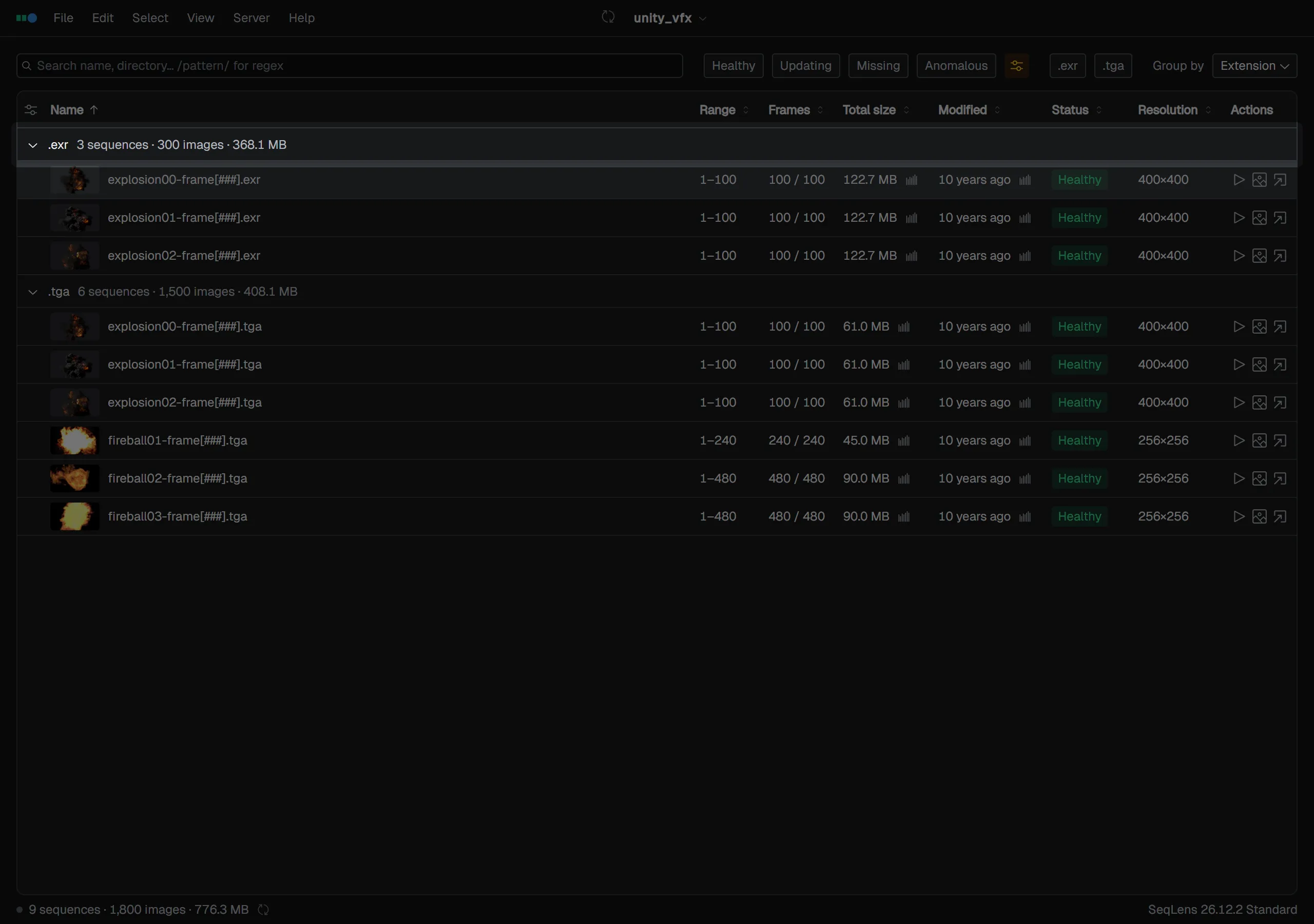
When there are many sequences, grouping them by a shared attribute makes the list easier to scan. Grouping can be combined with filters and search.
Choosing the grouping key
Choose the key from the Group by dropdown at the right edge of the filter bar.
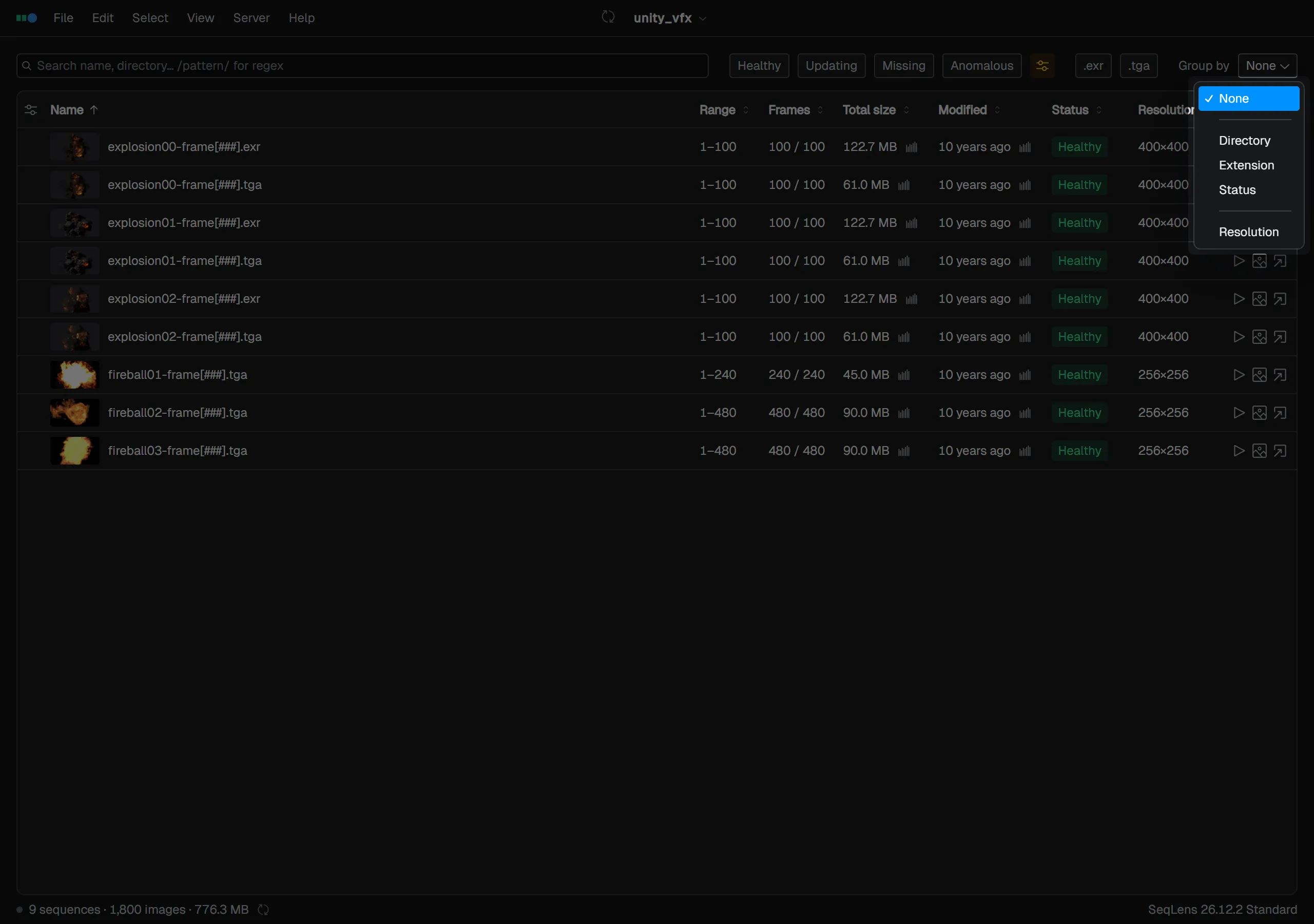
| Key | Description |
|---|---|
| None | Do not group (default) |
| Directory | Group by the folder each sequence lives in |
| Directory (Parent) | Group by the parent folder, one level up |
| Directory (Grandparent) | Group by the grandparent folder, two levels up |
| Extension | Group by extension, such as .exr / .tga |
| Status | Group by Healthy / Updating / Missing / Anomalous |
Directory keys are shown relative to the project root. Parent and Grandparent climb the folder tree from each sequence, regardless of how deep it sits. For a sequence in seq010/sh020/comp, Parent groups it under seq010/sh020 and Grandparent under seq010. Use it to roll shots up by sequence, or assets up by category, without grouping by every distinct leaf folder.
If you have added regex capture columns or metadata columns, you can also group by their values. For example, you can group by shot number or pass name.
Group headers and aggregates
A header row appears at the start of each group. The header shows the group name, sequence count, image count, and total size. The current group name remains at the top while scrolling, so you can see which group you are viewing.
- Click a header to Collapse / expand the group
- Hold Shift or Cmd/Ctrl while clicking to select the sequences in the group together (or clear them if they are all already selected)
- Right-click a header to choose Select sequences in group / Add group to selection / Remove group from selection
- Right-click a header to Collapse all groups / Expand all groups at once; the same actions are available from the View menu and the command palette
When grouping by a metadata column, sequences with no value are grouped under (no value), and sequences whose value differs by layer are grouped under Mixed. The grouping state is saved and is preserved after restarting the app.