Regex capture columns
How to pull shot numbers, versions, and render-pass names out of file and folder names into columns.
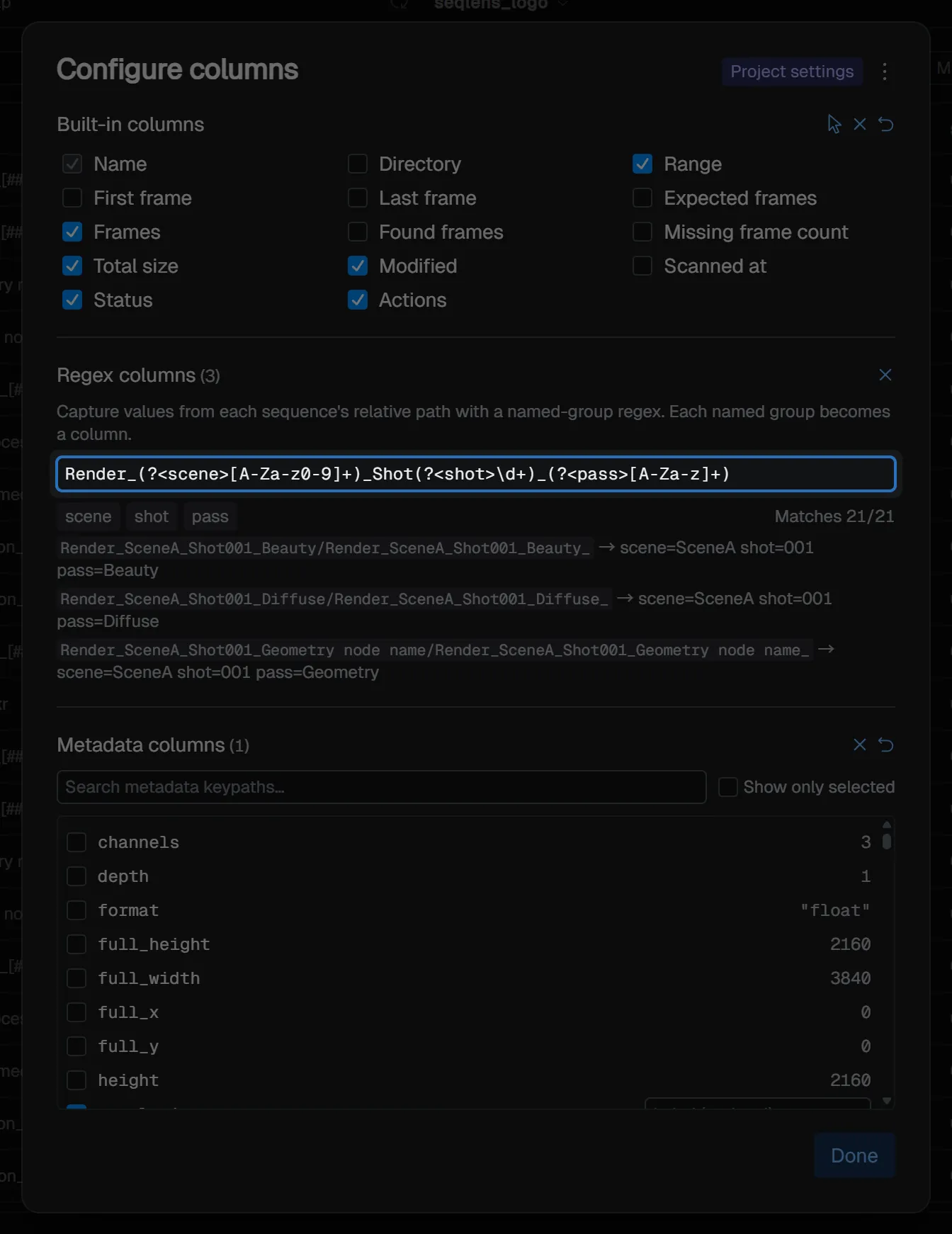
When file or folder names contain shot numbers, render-pass names, versions, or similar values, you can extract those values into table columns. This is useful for projects with fixed naming rules.
Opening settings
Configure this from the Configure columns dialog. There are three ways to open it.
- The Configure columns icon button at the left edge of the table header
- Right-click the table header → Configure columns
- Columns… from the command palette (on Windows / Linux, you can also open it from View → Columns…)
Regex columns are saved per project. The badge in the upper right of the dialog shows the current settings scope.
Writing a pattern
In the Regex columns section, enter one regular expression that contains named groups ((?<name>...)). One column is created for each named group, and the group name becomes the column name.
The target string is each sequence’s relative path from the project root + base name. It does not include the frame number or extension. Separators are normalized to /.
For example, if you give the following pattern for a name like Render_SceneA_Shot002_Beauty, you get three columns: scene / shot / pass.
Render_(?<scene>[A-Za-z0-9]+)_Shot(?<shot>\d+)_(?<pass>[A-Za-z]+)As you type, the extracted group names and match count are shown. A sample preview of up to 3 items lets you check which values are extracted from which strings. Settings are applied immediately, so there is no apply button. Close the dialog with Done or Esc.
TIP
If the match count is lower than expected, check the target string in the sample preview. If the regular expression is invalid, the input field turns red.
Using extracted columns
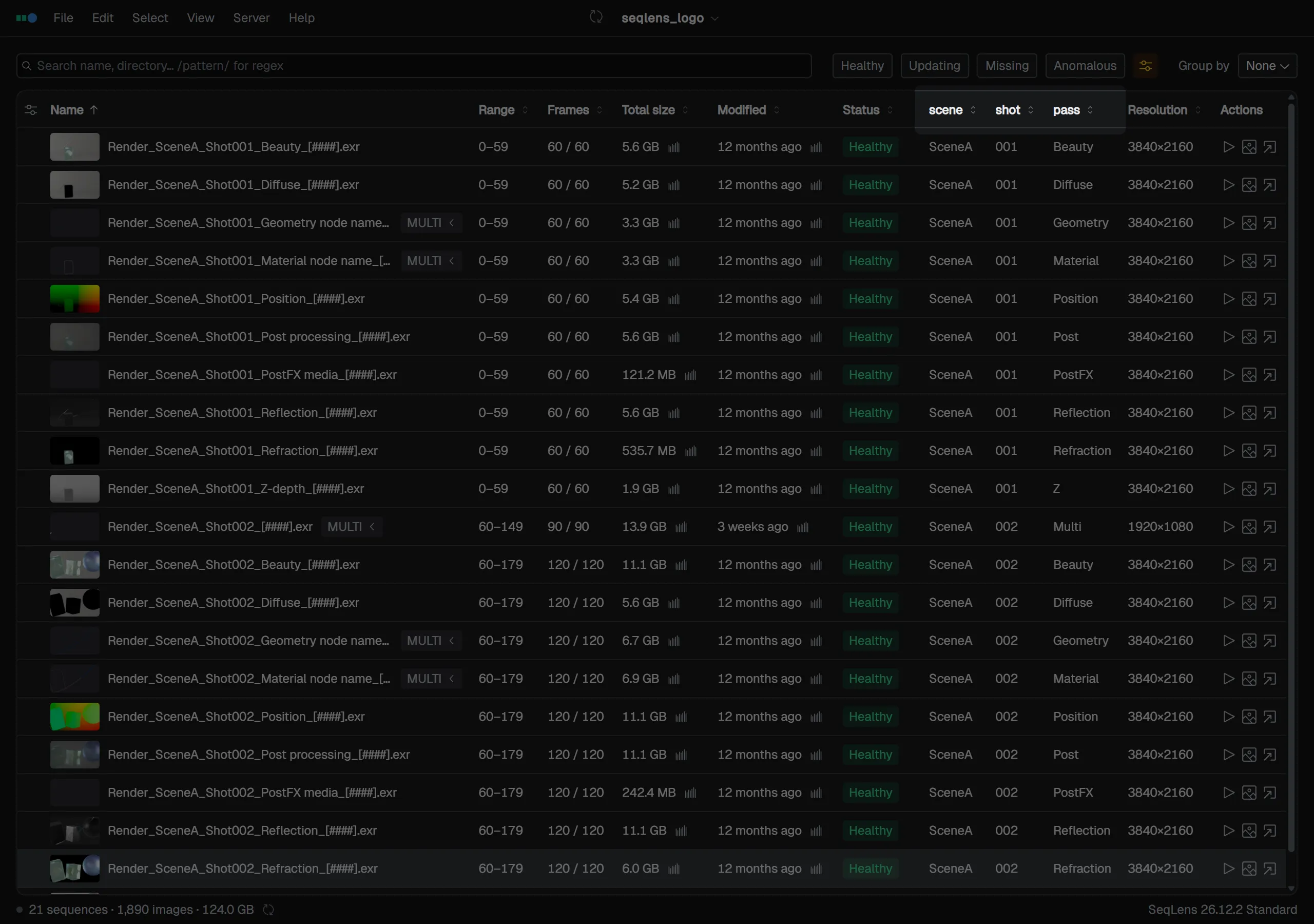
Created columns can be used like normal columns. You can sort by clicking the header, use them as a grouping key, or include them in exports such as CSV / JSON / PDF.