Export — MP4 / After Effects
How to convert sequences to MP4, and how to bring them into After Effects.
The selected sequences can be exported as a review MP4 or brought into After Effects as footage.
MP4 (via FFmpeg)
Open it from Edit → Convert to… → MP4 (H.264), the row right-click menu, or the title bar menu on Windows / Linux. MP4 export requires FFmpeg. If it is not configured, the setup screen appears.
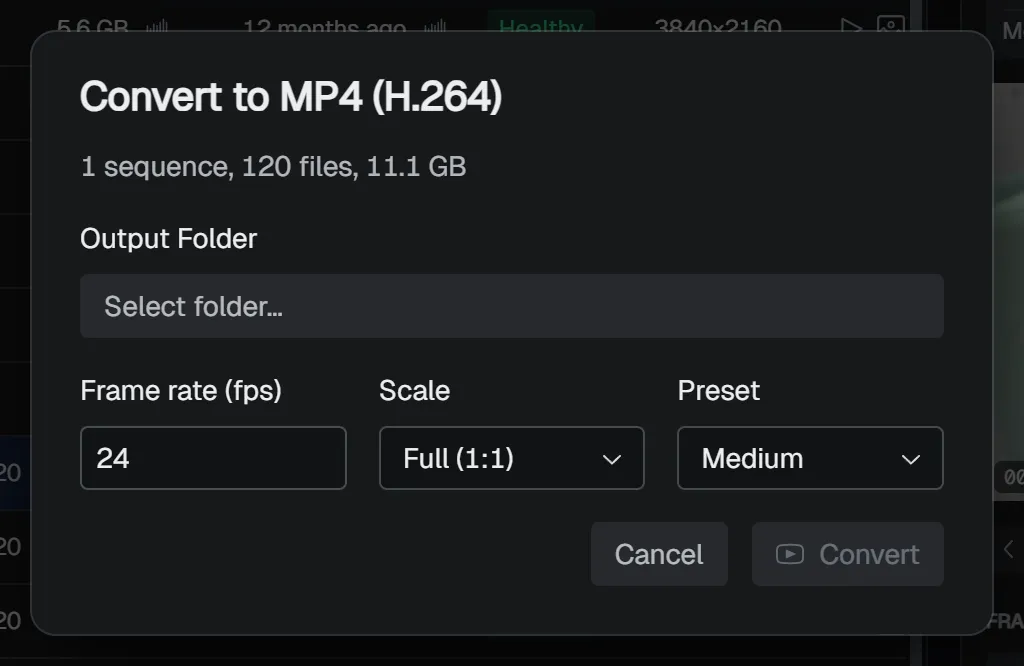
The Convert to MP4 (H.264) dialog has the following settings.
| Item | Contents |
|---|---|
| Output Folder | The folder where the MP4 is written. The file name is generated automatically from the sequence base name (with any trailing . _ - removed) and gets the .mp4 extension. |
| Frame rate (fps) | 1 to 120. The initial value is the fps from Project settings (or the last saved value for projects with none, defaulting to 24). |
| Scale | Output size. Full (1:1) / Half (1/2) / Quarter (1/4). |
| Preset | The balance between encoding quality and speed. Fast / Medium / Slow, defaulting to Medium. |
One MP4 is created per sequence. When multiple are selected, up to two are processed in parallel. When nothing is selected, the entire current filter result is the target. Progress appears in the job window, and you can cancel partway through.
WARNING
Sequences with missing frames cannot be turned into an MP4. If there are missing frames, a warning appears. Fill in the missing frames before exporting.
MP4 export is meant for review previews and lightweight videos for sharing. For delivery masters, we recommend using the original EXR / DPX frame sequence.
After Effects export
Run it from File → Export → Push to After Effects, the row right-click menu, or the title bar menu on Windows / Linux. It brings the selected sequences into After Effects as footage. When nothing is selected, the entire current filter result is the target. If After Effects is running, the footage is added to the current project; if it is not running, it is launched first and then imported. If there is an active composition, the footage is added as a layer.
The transfer runs in the background as a job, so you can keep working while it imports. Its progress appears in the job window, and you can cancel partway through.
After Effects must be installed to run this. After Effects is currently the only supported integration.
If the import fails, a warning appears. The main failure cases are:
- After Effects is not installed or cannot be detected
- Script execution is not allowed in AE (enable
Preferences → Scripting & Expressions → Allow Scripts to Write Files and Access Network) - AE is unresponsive or times out (30 seconds)
See Troubleshooting / FAQ for how to resolve these.