Lens — Compare mode

How to compare two or more sequences or layers side by side in Lens.

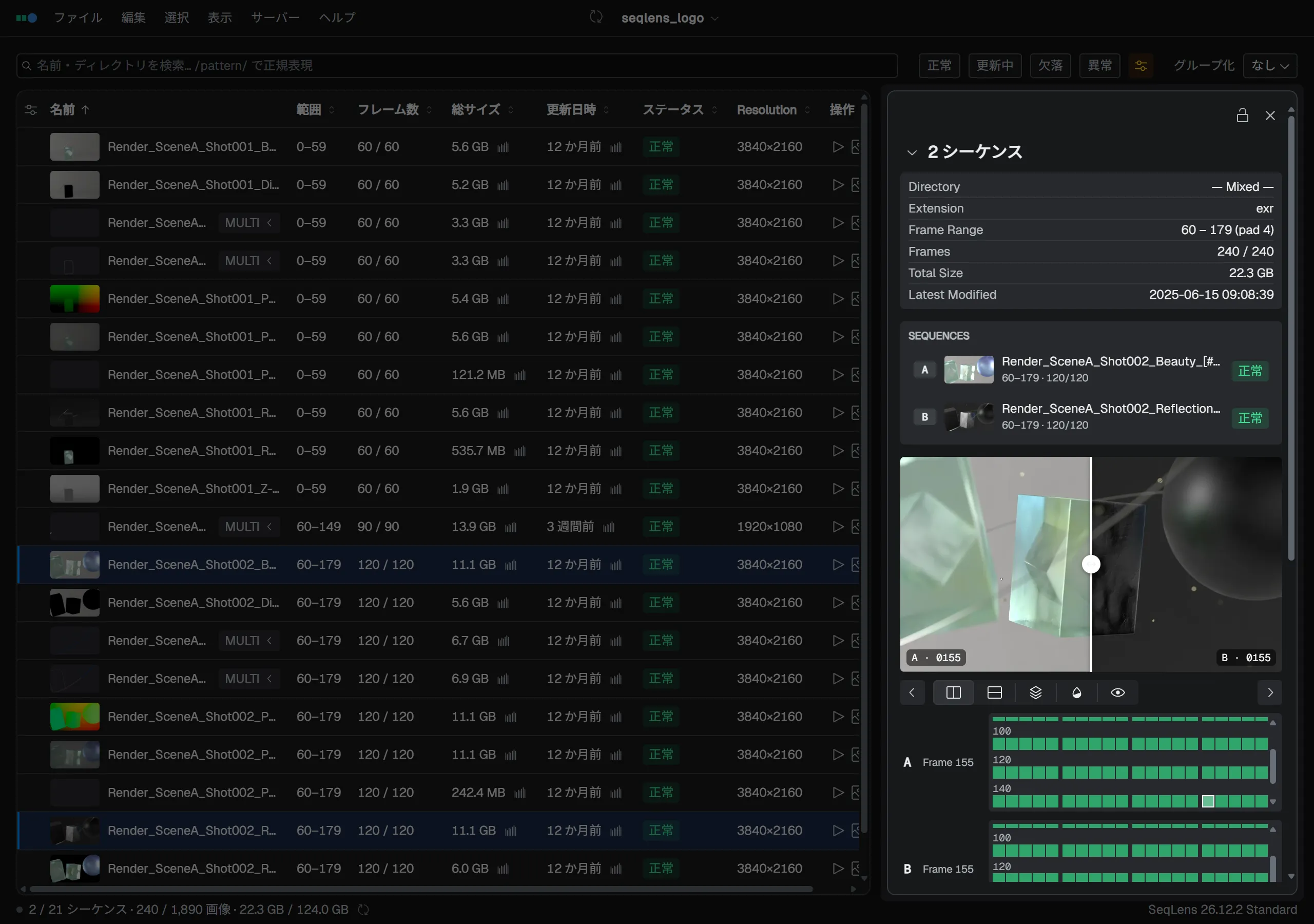
Lens Compare mode - vertical wipe comparison of two sources

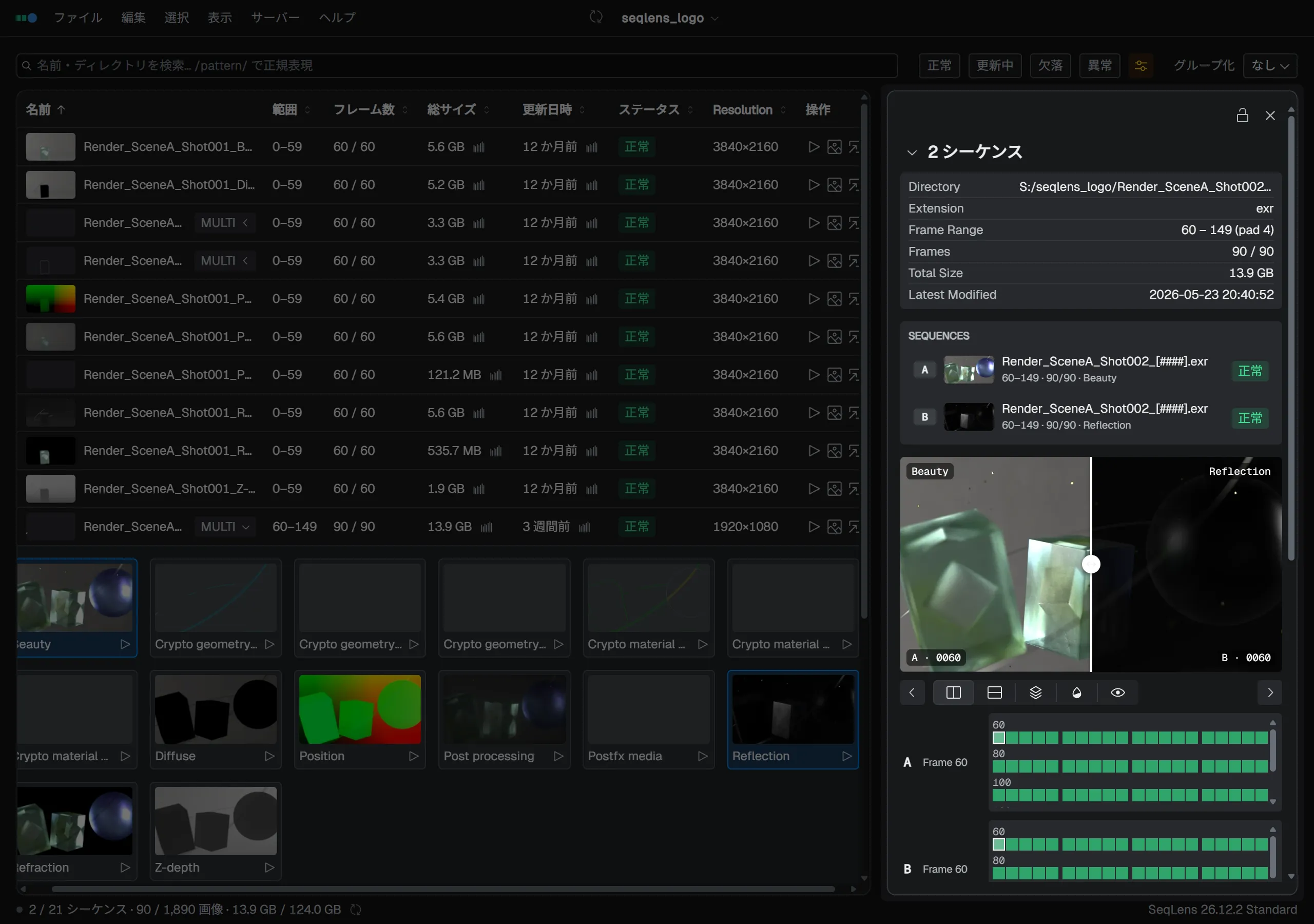
Select two or more sequences or layers and open Lens to enter Compare mode. You can review different versions of the same shot, different layers of the same EXR, and so on, side by side.

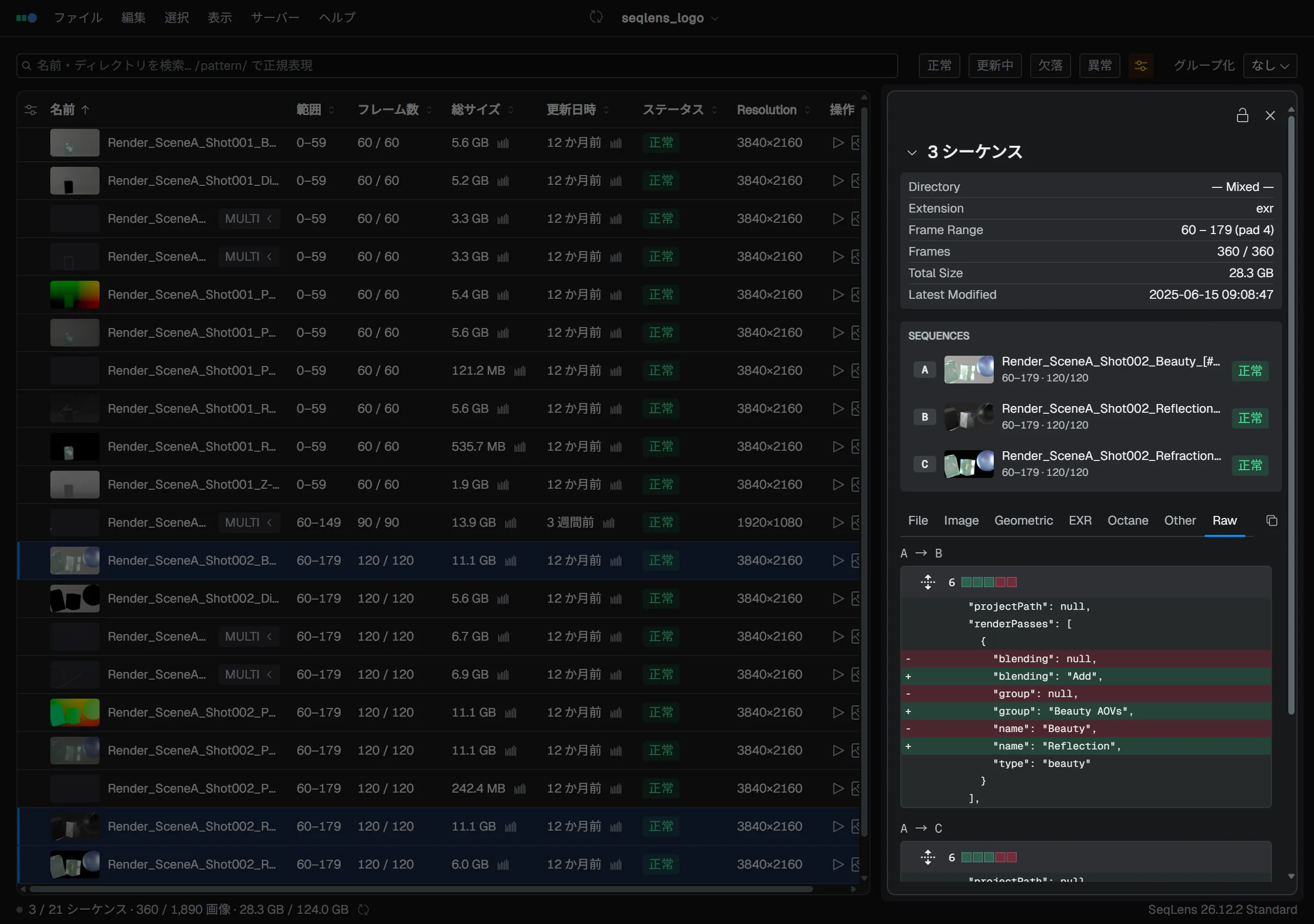
The source list at the top shows the selected items in order. The collapsible title summarizes the item count (N sequences) and the file information they have in common, such as directory and frame range; fields whose values do not match across items show — Mixed —. Click a row to show just that item in Inspect mode. When you select three or more items, the focus shifts from A/B image comparison to file information and metadata comparison.

Comparison view with three or more sources selected

Compare modes

The A/B preview is available when exactly two items are selected. Use the toggle buttons below the preview to choose how they are shown. The order of the list maps directly to A / B.

Mode Action Use
Vertical wipe Drag horizontally over the preview Split A on the left and B on the right at a vertical edge
Horizontal wipe Drag vertically over the preview Split A on top and B on the bottom
Onion-skin blend Drag horizontally over the preview, or use the A↔B slider in the toolbar Find differences in a semi-transparent composite
Pixel difference No interaction needed Highlight per-pixel differences with a difference composite
Flip Press and hold the preview Show B only while held, to switch quickly back and forth

In the wipe modes you can drag the boundary to move the comparison position. With onion-skin you can adjust how much A and B are blended. With flip, B is shown only while you press and hold the preview.

Frames and layers

Below the preview, the A and B frame grids sit side by side. You can select different frames for A and B. The scroll positions are synced, so you can compare nearby positions even when the sequences have different lengths.

While Lens has focus, the following keyboard actions are available.

  • : Step the active frame of both A and B by ±1 at the same time.
  • : Jump both A and B by one row of the A-side grid.
  • Page Up / Page Down: Replace the selection with the previous / next single item. The comparison ends and switches to the Inspect view of that one item.
  • Cmd/Ctrl+A / Cmd/Ctrl+Shift+A: Select / clear all across both the A and B frame grids.

There is no shortcut to step only the A side or only the B side. Click directly in a frame grid to choose the shown frame for each.

Comparing layers of the same EXR

Metadata comparison view

The metadata comparison view at the bottom lets you inspect the metadata of the selected items side by side. Rows whose values do not match are highlighted. This is useful for checking differences between render versions, or color space differences between layers.

Metadata is split into category tabs and can be narrowed with the search box. Use Show identical / Hide identical to show or hide rows whose values match across all items. The Copy button copies the comparison result all at once, and the Raw tab lets you compare raw metadata as a line-by-line text diff.