Opening and switching projects
How to open project folders, use recent projects, and use the address bar.
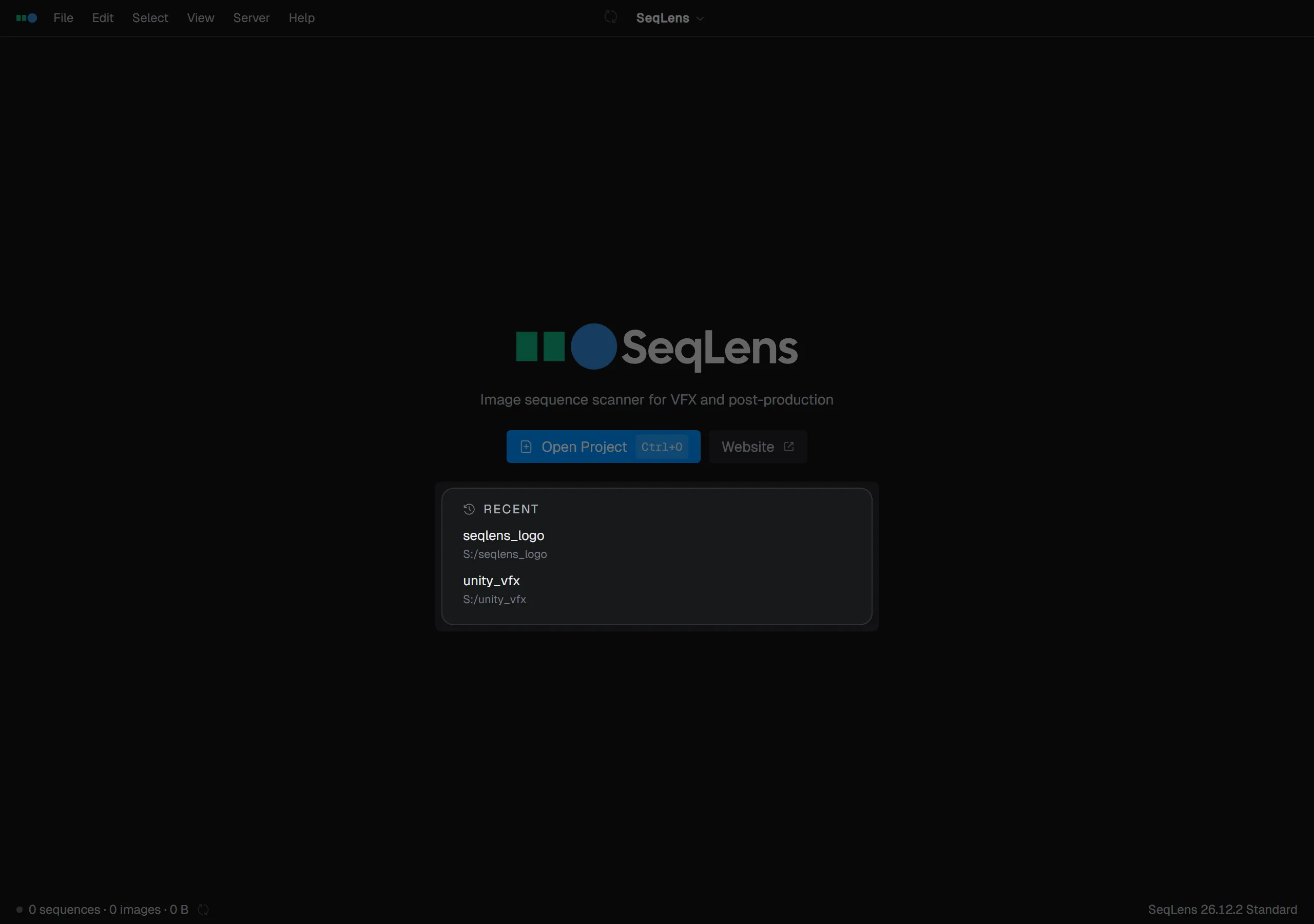
In SeqLens, you open the folder used as the starting point for finding image sequences as a “project.” When no project is open, the Welcome screen appears and you can start from Open Project or RECENT.
Opening a project
You can open a project in these ways.
- Open the folder picker from File → Open Project… (Cmd/Ctrl+O)
- Choose from Recent projects. You can open them from the right side of the window title, the right edge of the address bar, or File → Recent
- Drag and drop a folder onto the window. If you drop a file, its parent folder opens
The Welcome screen shows the 5 most recent items. More history is available from the address bar and File → Recent. When you choose another project, the current project is closed and scanning starts for the new folder. To only close the current project, use File → Close Project (Cmd/Ctrl+W).
TIP
The project that was open last is automatically reopened when the app starts. If you want to start on the Welcome screen next time, explicitly close it with Close Project (Cmd/Ctrl+W) before quitting.
Address bar
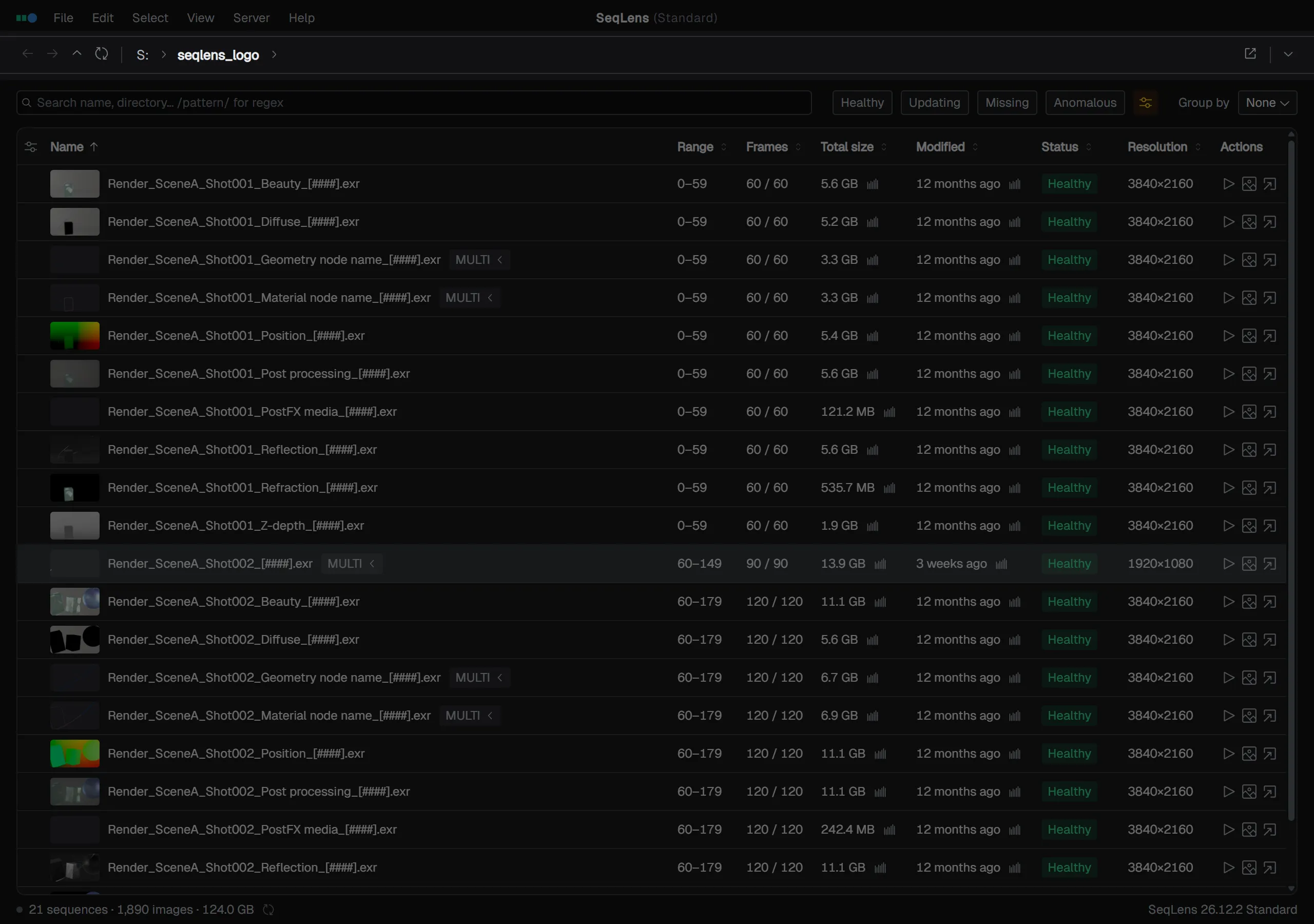
Toggle the address bar from Preferences → General → Show address bar, or from View → Show Address Bar. Use breadcrumbs, back/forward/up buttons, and the path input field to move around inside the project.
- Click the nearest parent folder name in the breadcrumbs to move to that parent level
- Click an ancestor folder above that or the final segment (the current location) to switch to the path input field
- Use the dropdown at a separator to jump to a sibling directory
- Use the dropdown at the end to move to a child folder of the current directory
- Use the back/forward arrows to move through history (up to 50 entries are kept)
- Clicking empty space also switches to the path input field; confirm with Enter or cancel with Esc
The rescan button is also here. When file watching is paused, this button turns to a warning color, and pointing at it shows the reason in a tooltip. Press the Reveal in Finder / Reveal in Explorer button (next to the path input field) to open the current project folder in Finder / Explorer.
Recent projects and rescanning
Up to 100 recent projects are saved. To remove one from history, right-click the list item and choose Remove from Recent. If you remove the currently open project, that project is also closed.
- Rescan: Cmd/Ctrl+R, or the rescan button in the address bar / status bar
- Reveal in Finder / Reveal in Explorer: Cmd/Ctrl+E opens the target folder. If exactly one sequence is selected, the target is that sequence’s directory; otherwise (no selection or multiple selections), the target is the project root