Selection
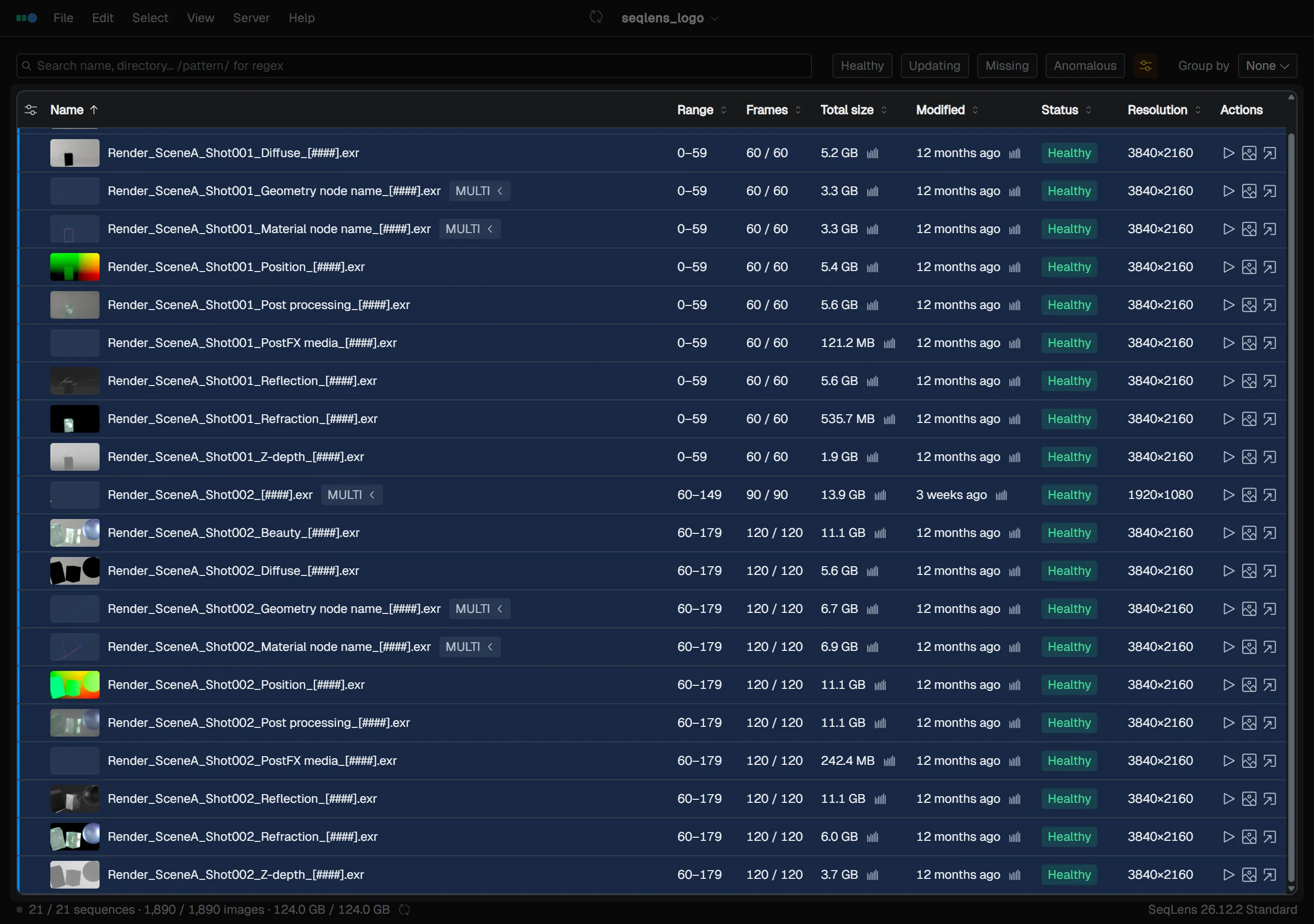
How to select one, many, a range, or layers in the sequence table.
The number of selected items is shown in the status bar.
Mouse and keyboard
| Action | Shortcut |
|---|---|
| Select one item (clears previous selection) | Click |
| Select range (from the previous anchor row) | Shift+Click |
| Toggle individual items on or off | Cmd/Ctrl+Click |
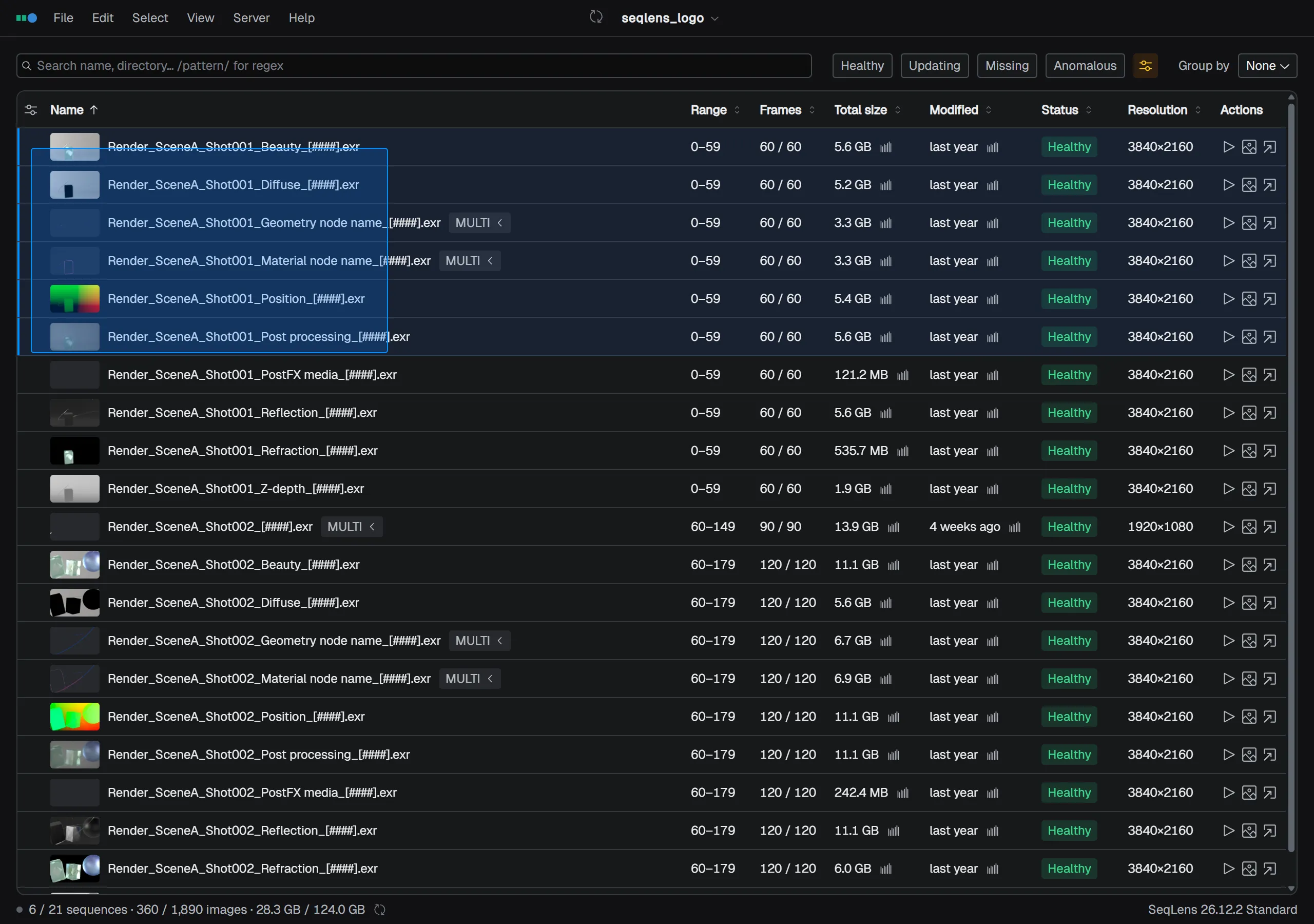
| Select a rectangle (marquee) | Drag from an empty area; hold Cmd/Ctrl to toggle |
| Select all | Cmd/Ctrl+A |
| Deselect all | Cmd/Ctrl+Shift+A / Esc when no layer row is selected |
| Move by row / extend range | ↑↓ / hold Shift to extend the range |
| Move by page / extend range | Page UpPage Down / hold Shift to extend the range |
| Move to first or last row | Home / End |
Rectangular selection
Drag from an empty area — the row’s left edge or the blank space below the list — to sweep a rectangle across the rows you want. Plain dragging replaces the current selection; hold Cmd/Ctrl while dragging to toggle the rows the rectangle touches on or off. The list auto-scrolls when you drag past the top or bottom edge.
Bulk selection by type
From the Select menu, you can select sequences that match a condition in one operation.
- macOS - use Select All / Deselect All / Invert Selection / Select Healthy / Select Missing / Select Anomalous.
- Windows / Linux - the above are available, plus Select by Extension and Select by Metadata.
Select by Extension selects by extension (.exr, .png, and so on), while Select by Metadata selects by a column and value combination (for example, by each value in a metadata column). Both can also be run from the command palette, where they are available on macOS as well.
NOTE
Invert Selection swaps selected and unselected sequences. Lens also has an item with the same name in the frame grid, but that one inverts frame selection and is separate from sequence selection.
Lens integration
Press Space while items are selected to open or close Lens.
- Space with 1 item selected - opens Inspect in Lens.
- Space with 2 or more items selected - switches to and opens Compare in Lens (the View menu label also switches automatically between Inspect in Lens and Compare in Lens depending on the selection count).
- Space while Lens is open - closes Lens.
Selecting layer child rows
Layer rows, such as EXR layers, can be selected after expanding the parent sequence. Click, Shift+Click, and Cmd/Ctrl+Click work the same way as regular rows.
When a layer row has focus, you can move between layers with the arrow keys. Press ↑ at the top edge to move to the parent sequence, or ↓ at the bottom edge to move to the next sequence.
Press Cmd/Ctrl+A on a layer row to add all layer rows in that parent sequence to the selection. Press Esc to return to the parent sequence row.
Right-click menu
Right-click a sequence row to run file operations and export operations from that location, as well as Select all / Invert selection / Clear selection.