Export — ZIP / CSV / JSON / PDF
How to export sequences as ZIP, CSV, JSON, and PDF.
Start CSV / JSON / PDF from File → Export, the row right-click menu, or the title bar menu on Windows / Linux. Start ZIP from Edit → Archive…, the row right-click menu, or the title bar menu on Windows / Linux. When sequences are selected, the selected items are the target. When nothing is selected, the current filter result is the target.
NOTE
Editorial timelines (OpenTimelineIO) and checksum manifests (MHL) live in the same export submenu, but because their purpose is different they are covered separately in Export — OpenTimelineIO and MHL and copy verification.
ZIP
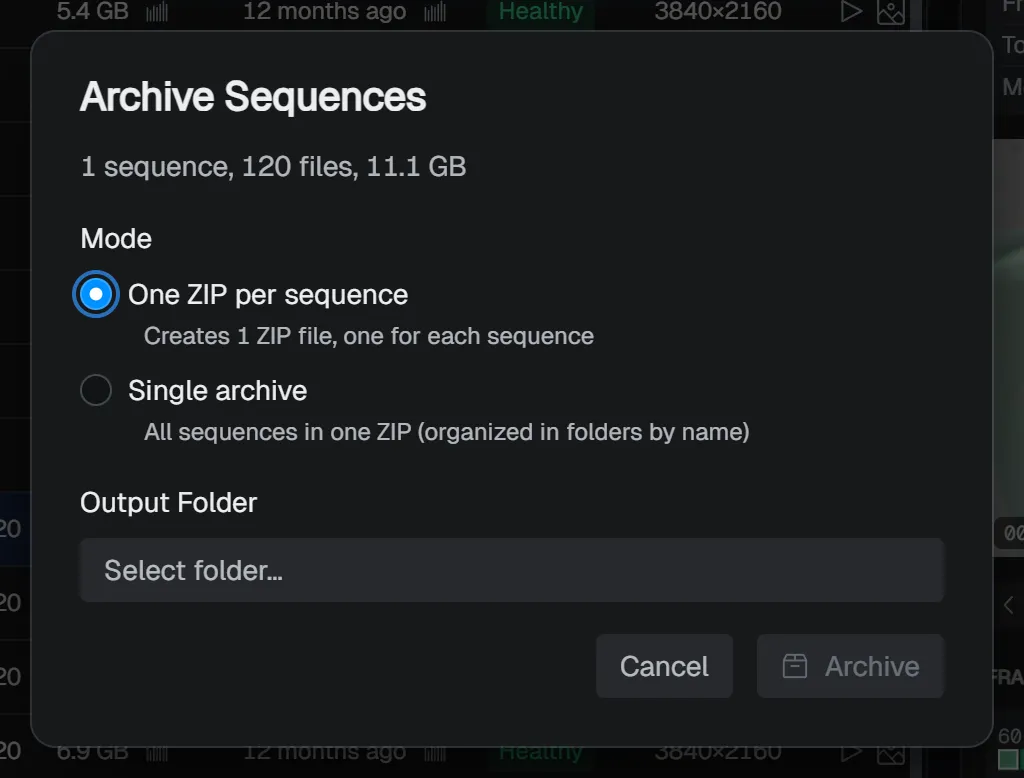
The Archive Sequences dialog lets you choose how files are grouped and where they go. Only frames that are actually found go into the ZIP; missing frames are not included. Progress appears in the job window, and you can cancel partway through.
NOTE
Because missing frames are excluded from the archive, the frame count inside the ZIP may be lower than the original expected count.
| Mode | Description |
|---|---|
| One ZIP per sequence | Generates one .zip per sequence. The destination is the Output Folder (a folder). |
| Single archive | Combines all sequences into one .zip. The destination is Save As (a file path). Inside the ZIP, files are organized into folders by sequence name. |
CSV
Export as CSV lets you choose the output format and columns. On the column-selection step, the preview on the right shows what the output will look like. The column selection and header style are saved. Until you customize them, the Sequence list columns inherit the table’s Configure columns settings as their initial values.
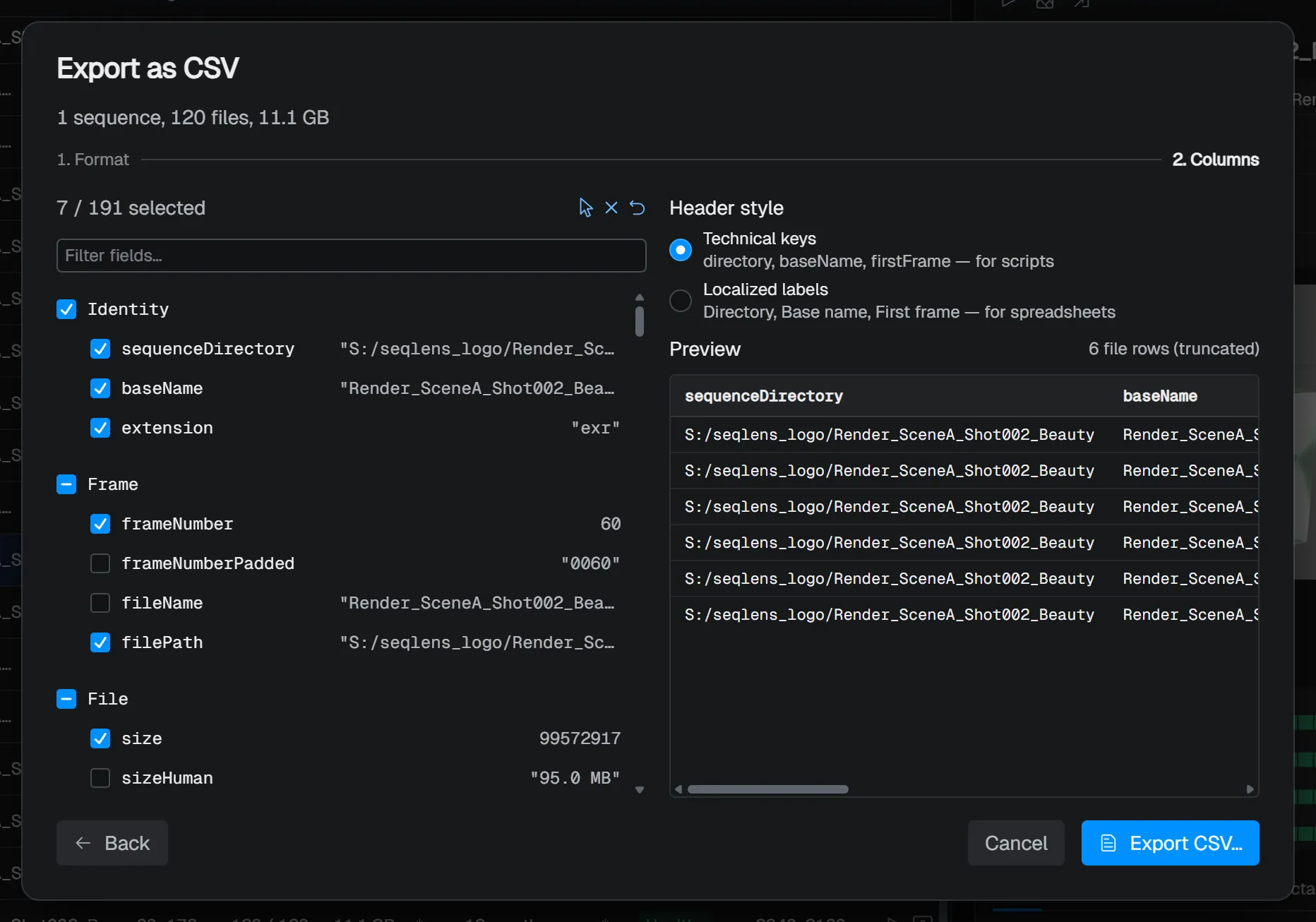
| Item | Description |
|---|---|
| Format Sequence list | One row per sequence. Choose from directory baseName extension padding firstFrame lastFrame frameRange expectedFrames foundFrames missingFrameCount missingFrames totalSize totalSizeHuman mtimeMs mtimeIso status scannedAt. |
| Format File list | One row per frame. Choose from sequenceDirectory baseName extension frameNumber frameNumberPadded fileName filePath size sizeHuman mtimeMs mtimeIso sequenceStatus. |
| Header style Technical keys | Writes the field keys (directory, baseName, etc.) directly into the header row. |
| Header style Localized labels | Writes each field’s display label (Directory, Base name, etc.) into the header row. |
The column selection tree has groups such as “Image metadata,” where you can add any image metadata item (for EXR / ffprobe-supported files) as a column. Setting a label uses it for the “Localized labels” header. Regex capture columns can also be toggled on / off here and included in the export.
The File list and any metadata columns that need to read the images can take a while to export. While it runs, you can cancel from the job window.
JSON
Export as JSON lets you choose the JSON shape and which fields to include. A preview appears on the right so you can check the result as you configure it. Until you customize them, the Sequence fields inherit the table’s Configure columns settings as their initial values.
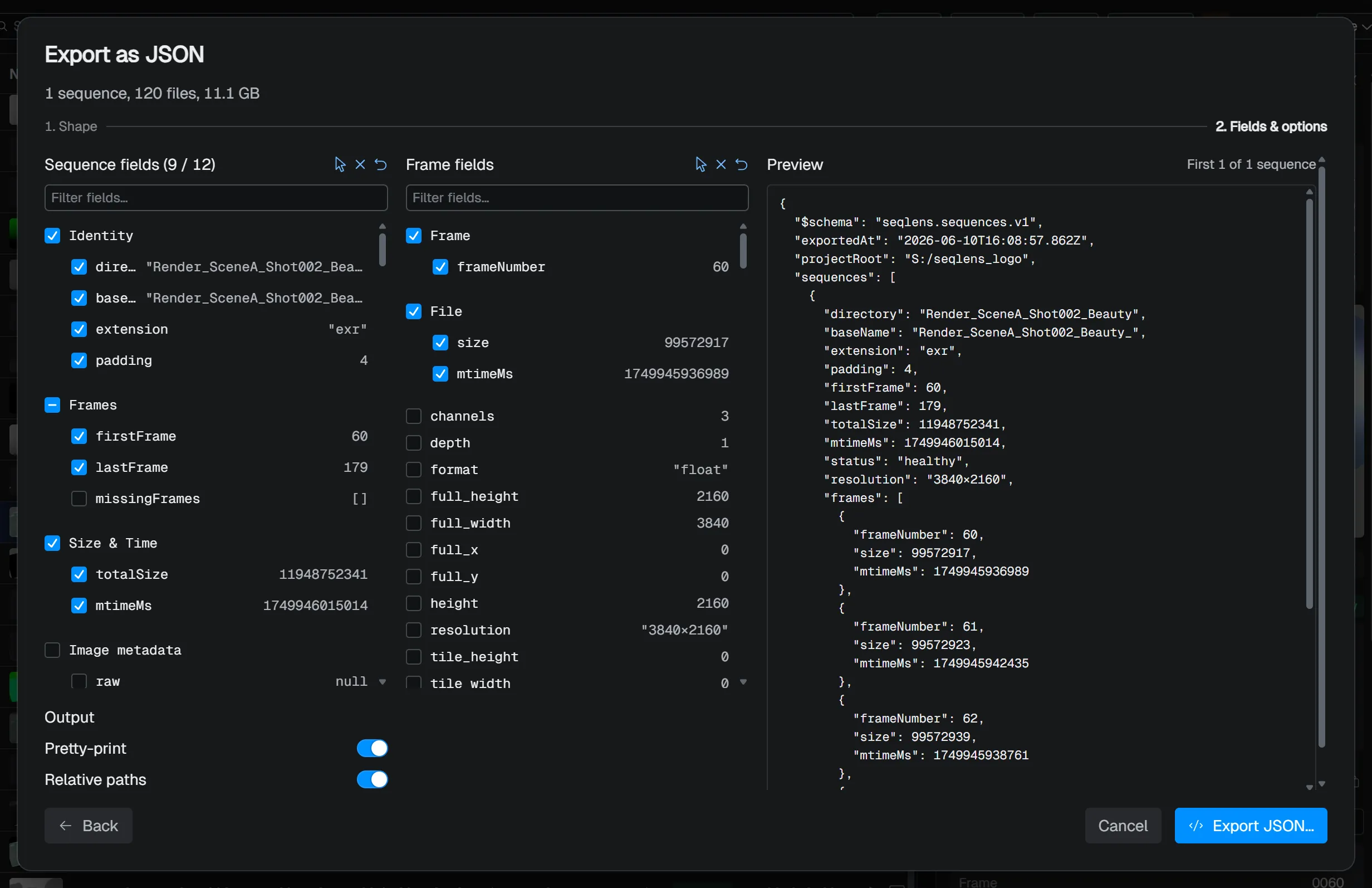
| Item | Description |
|---|---|
| Shape Flat | An array of sequences. No frame information. |
| Shape Nested (with frames) | Embeds a frames array in each sequence. |
| Shape JSON Lines | NDJSON with one sequence per line. Pretty-print is ignored. |
| Sequence fields | Choose from directory baseName extension padding firstFrame lastFrame missingFrames totalSize mtimeMs raw status scannedAt. |
| Frame fields | Only available with Nested. Choose from frameNumber size mtimeMs. |
| Pretty-print | Formats with indentation (ignored for JSON Lines). |
| Relative paths | Converts path values to paths relative to the project root. |
| Include $schema envelope | Adds a leading envelope with $schema / exportedAt / projectRoot. |
The field selection tree has groups such as “Image metadata,” where you can add any image metadata item (for EXR / ffprobe-supported files). Metadata read per frame can be slow. Regex capture columns can also be toggled on / off here and included in the export.
Export as PDF writes a human-readable report. Configure it on the left and check the appearance in the Preview on the right.
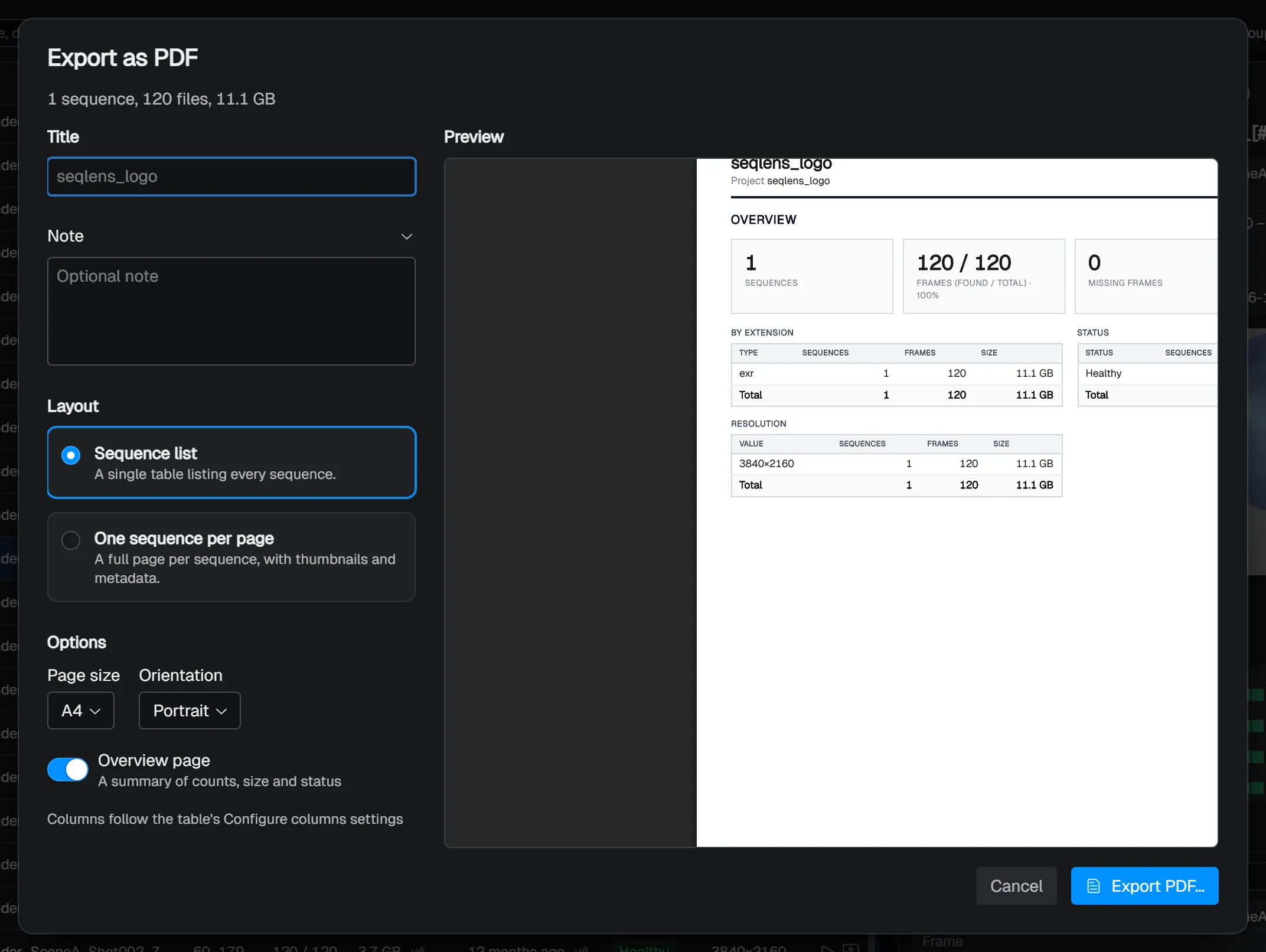
There are two layouts.
| Layout | Contents |
|---|---|
| Sequence list | A single table listing all sequences |
| One sequence per page | One page per sequence, with thumbnails and metadata |
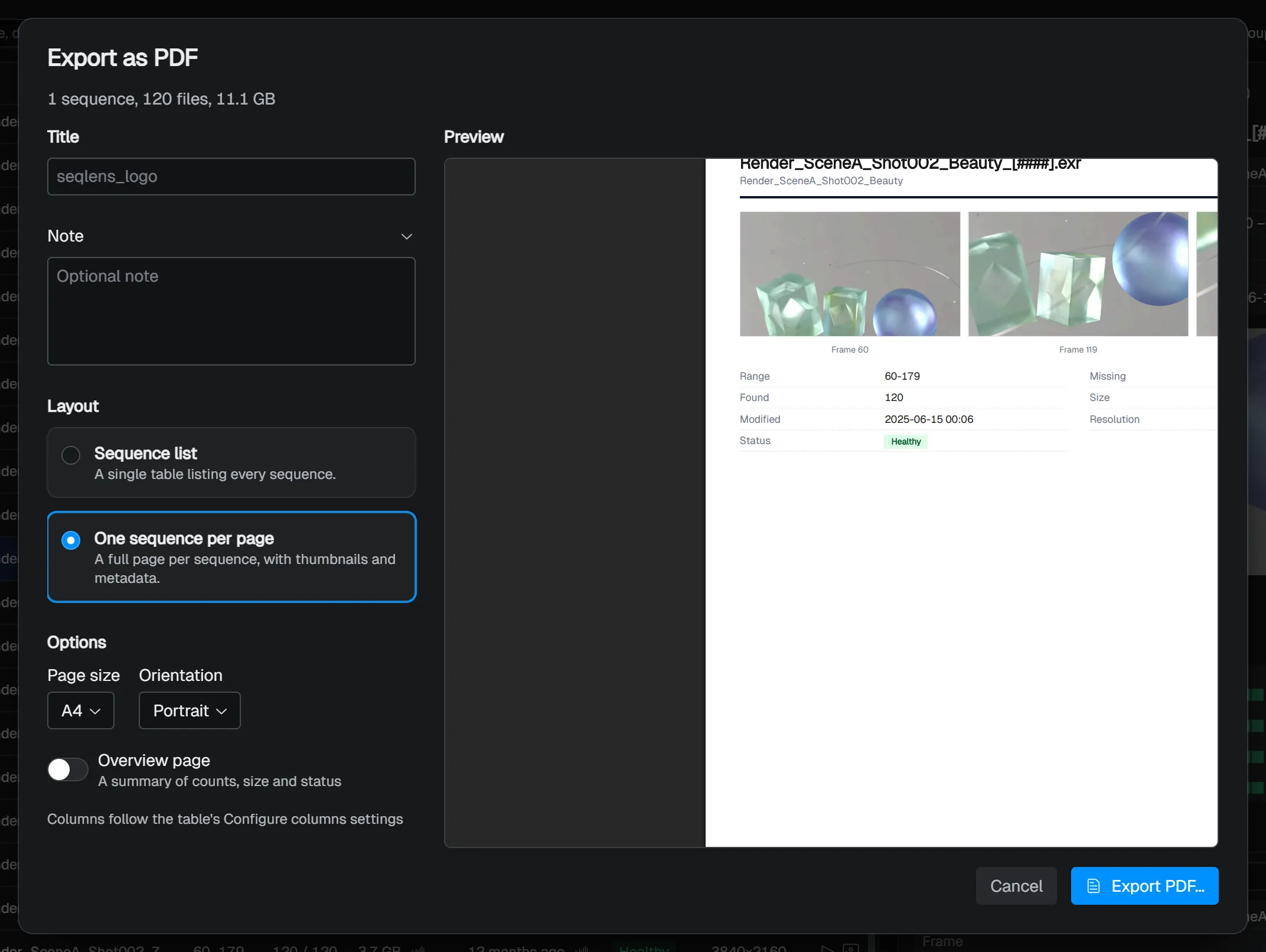
You can also set a Title, a Note, the Page size, the Orientation, and whether to include an Overview page. The columns in the output table follow the table’s Configure columns settings.
TIP
The preview re-renders slightly after your input (especially “One sequence per page,” which takes time to collect thumbnails). You can start the export without waiting for the preview to finish.