Settings reference
The display, scanning, FFmpeg, HTTP API, and account settings.
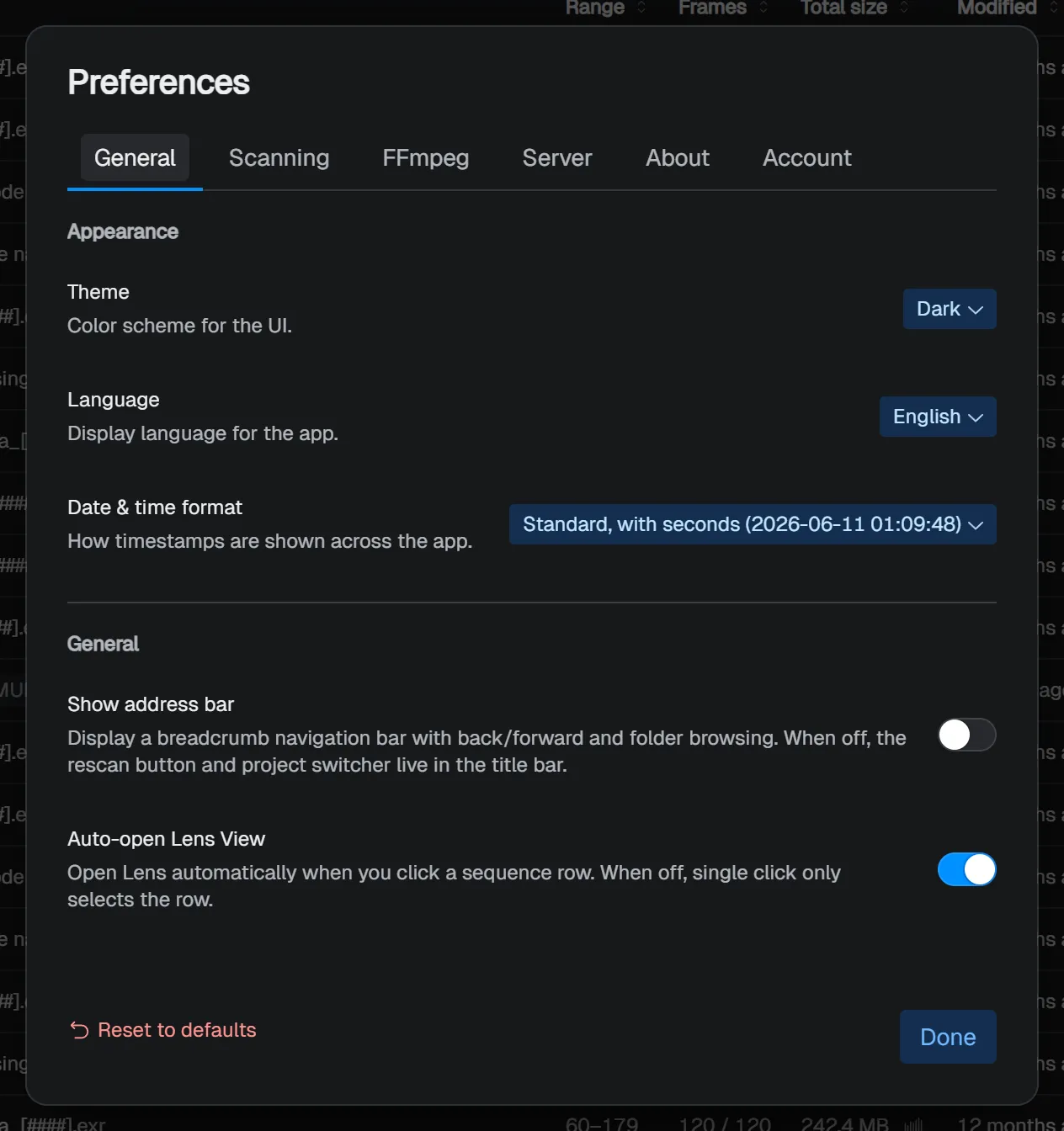
Open settings with Cmd/Ctrl+,. Changes are saved immediately. Use Reset to defaults in the lower left to restore the defaults. On the Account tab, Sign out appears there instead.
General
This tab is split into two sections: Appearance and General.
| Setting | Type / values | Default | Description |
|---|---|---|---|
| Theme | System / Light / Dark | System | UI color scheme. System follows the OS theme. |
| Language | System / English / 日本語 | System | UI language. System resolves from the OS locale. |
| Date & time format | Standard, with seconds / Standard, no seconds / System regional | Standard, with seconds | Selects the date and time display format used throughout the app. |
| Show address bar | Switch | OFF | Shows a breadcrumb, back/forward controls, and folder navigation address bar at the top of the window. |
| Auto-open Lens View | Switch | ON | Controls whether Lens opens automatically when you click the frame strip in a sequence row. |
Scanning
| Setting | Type / values | Default | Description |
|---|---|---|---|
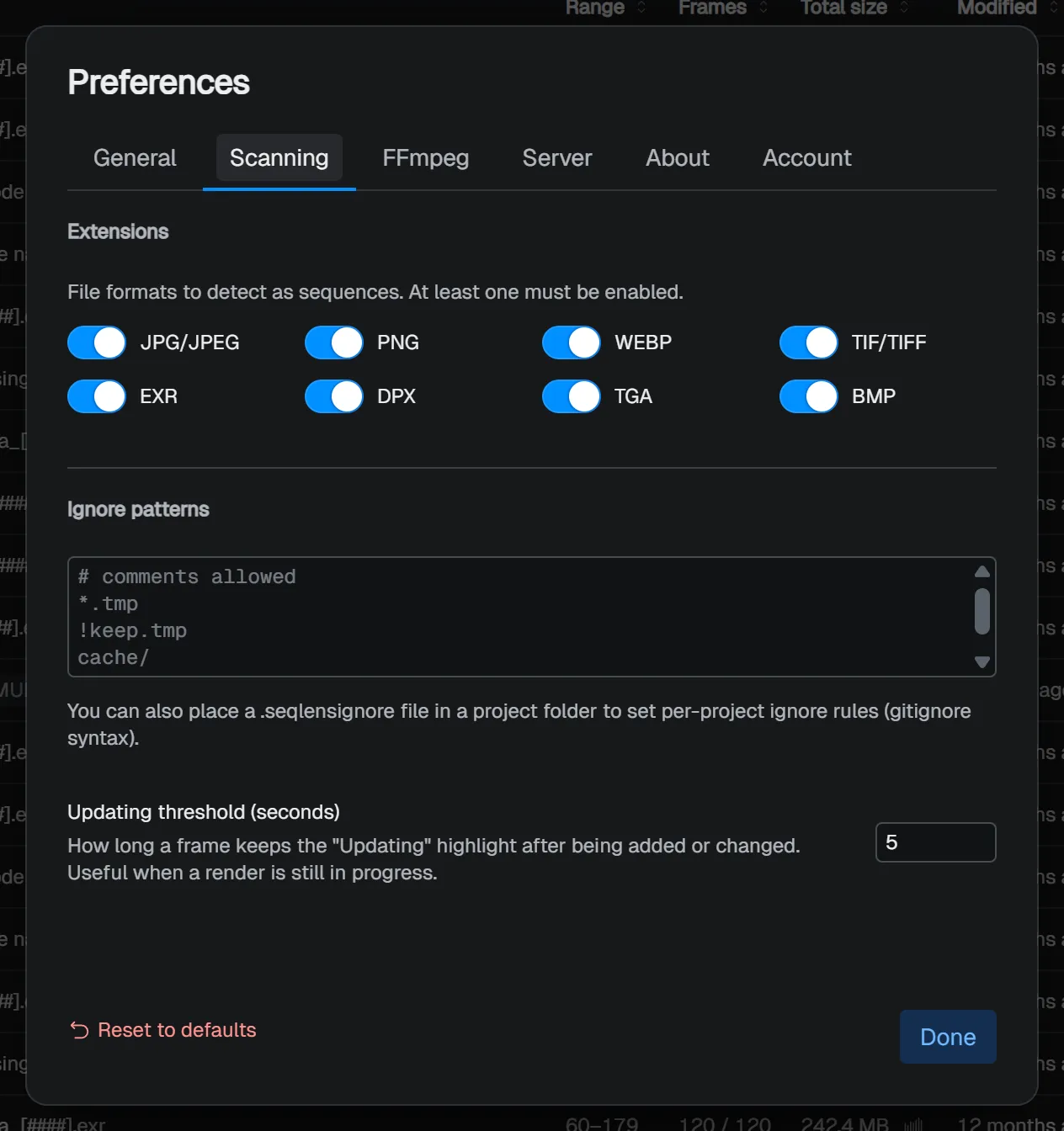
| Extensions | Switches for JPG/JPEG PNG WEBP TIF/TIFF EXR DPX TGA BMP |
All ON | Extensions detected as sequences. At least one must stay enabled. |
| Ignore patterns | gitignore-compatible text area | Empty | Enter lines such as *.tmp, !keep.tmp, cache/, or /root-only, separated by newlines. Lines starting with # are comments. |
| Updating threshold (seconds) | Integer (1-3600) | 5 |
Number of seconds that added or changed frames remain highlighted with the Updating badge. |
FFmpeg
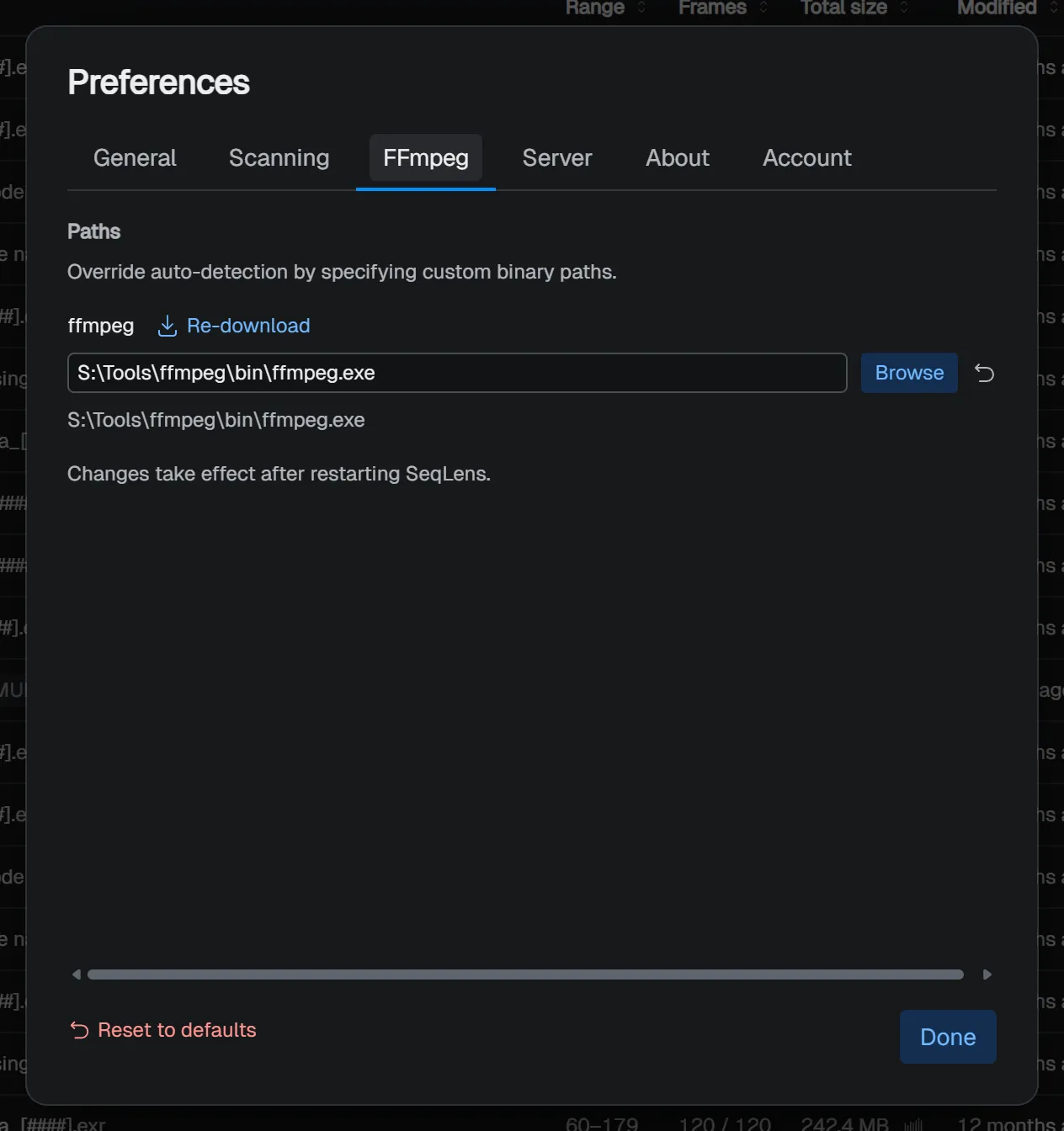
Set the location of ffmpeg, which is used for MP4 export and Quick Play.
| Setting | Type / values | Default | Description |
|---|---|---|---|
| ffmpeg | Path string | Empty (auto-detect) | When empty, SeqLens looks for an automatically downloaded binary or ffmpeg available on PATH. |
If FFmpeg is not found, Run setup wizard appears at the top of the tab. Path changes may take effect after restarting SeqLens.
Server
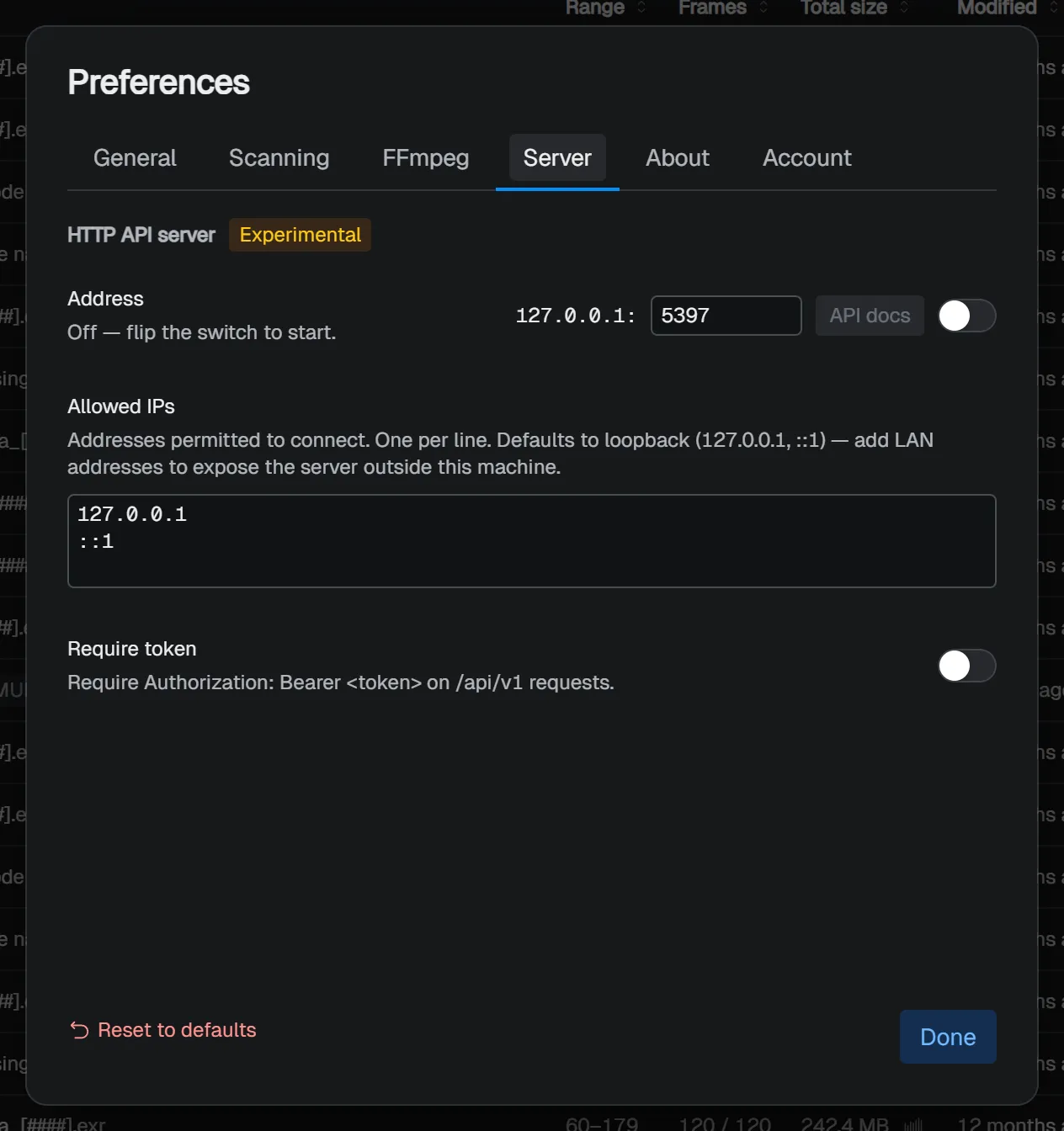
The HTTP API server lets tools on the same machine, or on networks you allow, read SeqLens information. While the server is running, the port, allowed IPs, and token-related settings cannot be changed.
The HTTP API server heading includes an Experimental badge. Endpoints, payload shapes, and behavior may change in future releases without notice.
| Setting | Type / values | Default | Description |
|---|---|---|---|
| Address | Host display + port (1-65535) + API docs + switch |
OFF / 5397 |
Starts or stops the server. API docs can be opened only while the server is running. |
| Allowed IPs | Newline-separated text area | 127.0.0.1 ::1 |
IP addresses allowed to connect. Adding non-loopback addresses exposes the server externally, and an orange warning appears below when authentication is off. |
| Require token | Switch | OFF | Generates a token the first time it is turned on, and requires the Authorization: Bearer <token> header on API requests. |
| Token | Read-only text + Copy / Regenerate | Empty | Shown only when Require token is ON. Regenerate can be used only while the server is stopped. |
About
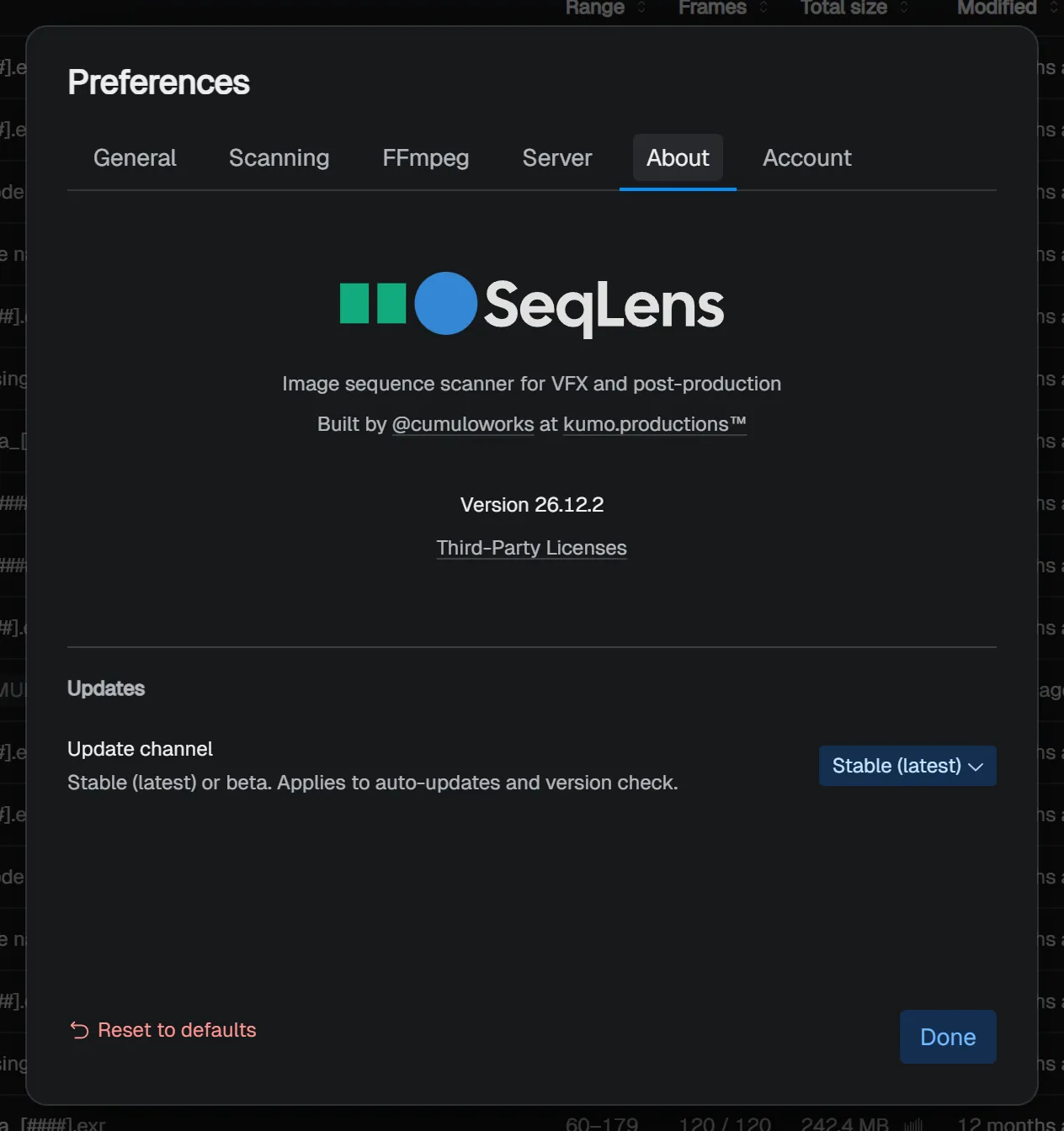
You can check the app version, license information, and update channel.
| Item | Contents |
|---|---|
| Logo | Opens https://seqlens.app when clicked. The tagline Image sequence scanner for VFX and post-production appears below it. |
| Credit | Built by @cumuloworks at kumo.productions™. @cumuloworks links to https://x.com/cumuloworks, and kumo.productions™ links to https://kumo.productions/. |
| Version | The app version string. |
| Third-Party Licenses | Opens the list of licenses for the open-source software used by SeqLens. |
| Update channel | Stable (latest) / Beta (default: Stable (latest)). Applies to both automatic updates and version checks. |
Account
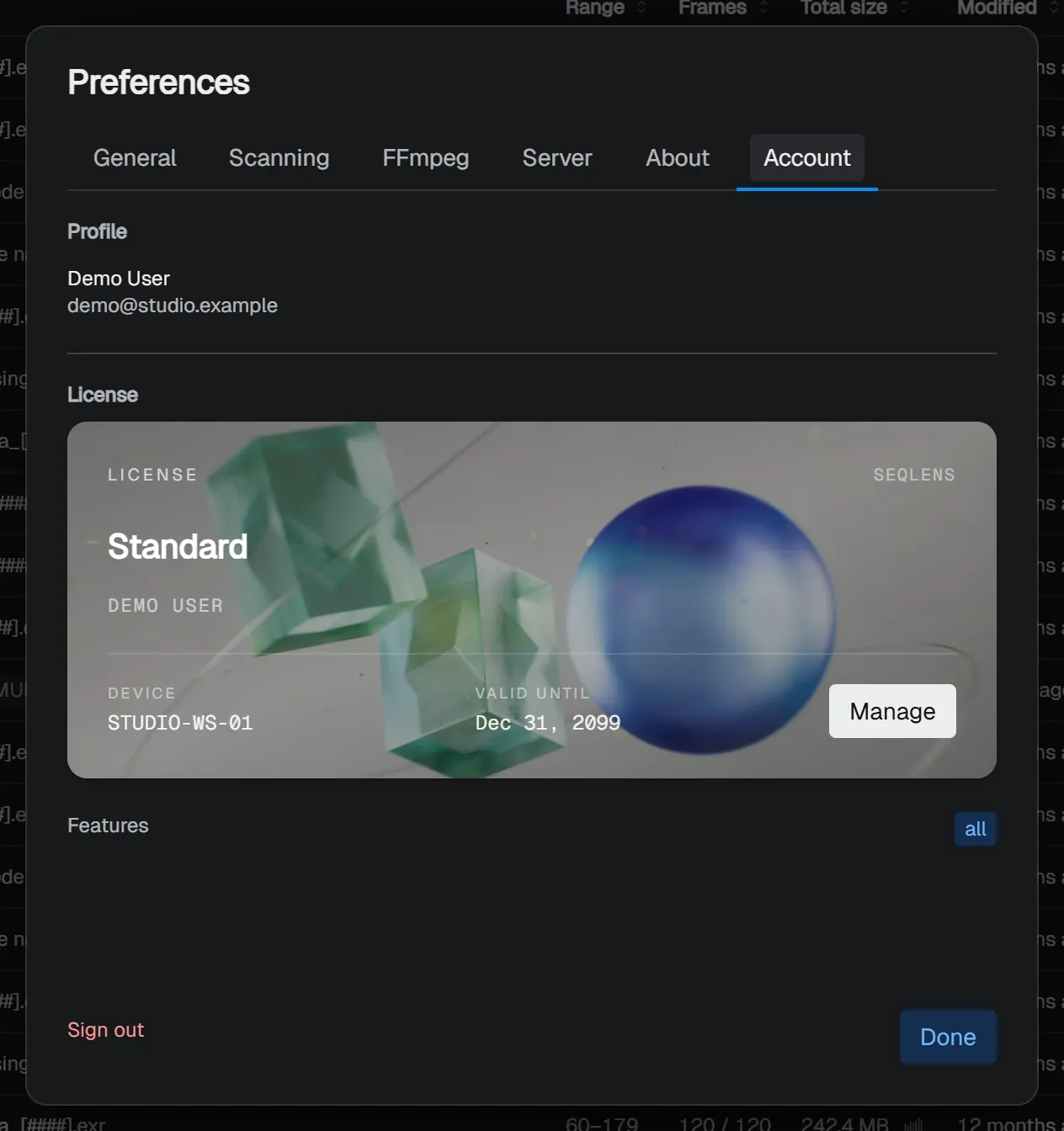
| Item | Contents |
|---|---|
| Profile | Avatar, display name, and email address (only when it differs from the display name). |
| License | Shows the current license, machine name, and expiration date. Buttons for purchase and management pages appear here. |
| Features | Lists feature flags included in the license as badges (only when applicable features exist). |
| Sign out | Sign-out button shown in the lower-left footer only while signed in. Pressing it immediately closes the dialog. |