Find sequences
In a project with many sequences, get to the shot you want with search, filters, columns built from your naming convention, and grouping.
Searching by name

Press Cmd/Ctrl+F to jump to the search box in the filter bar and type a name. Search matches file names, folder paths, and extensions. Separate words with spaces and only rows that match every word stay.
Wrap a pattern in slashes, like /Shot002_(Beauty|Reflection)/, to search with a regular expression.
Add i at the end (/beauty/i) to ignore case.
While the pattern is invalid, the box turns red and the text is treated as a plain search.
Focus the search box to see what you searched for before. Up to 100 entries are kept, and you can remove them one by one.
Filtering by status or extension
Click Healthy, Updating, Missing, or Anomalous in the filter bar to show only that status. Pick several and rows matching any of them are shown. The extension filter lists only the extensions present in the project.
Search and filters persist across restarts. To clear them, click Clear all in the filter bar.
Building columns from your naming convention
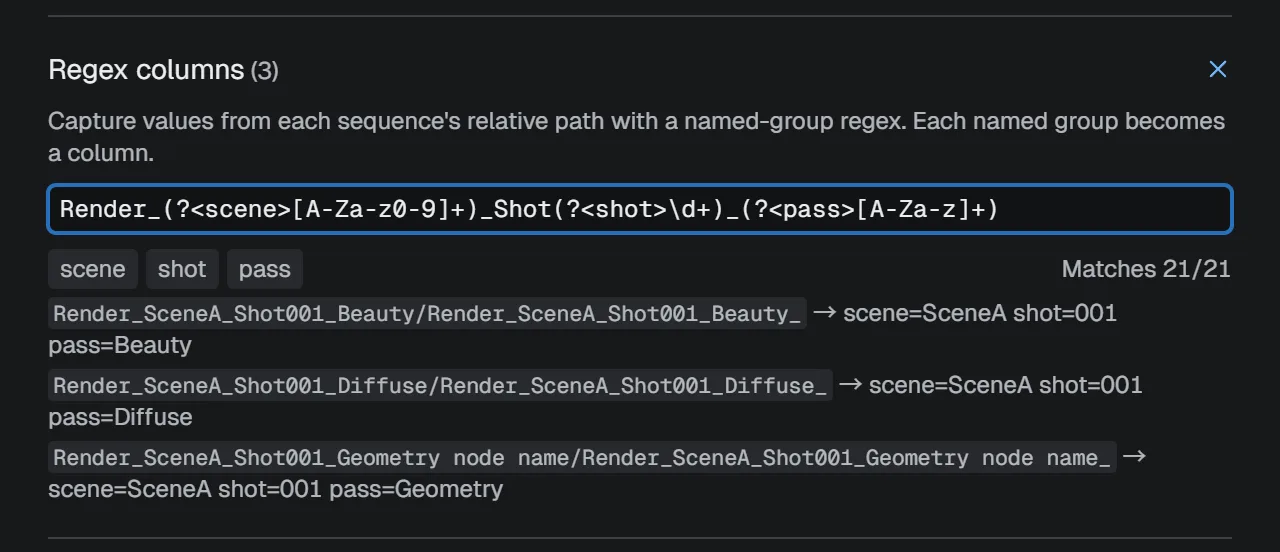
If shot numbers or pass names are part of your file or folder names, a regular expression can pull them out into table columns.
- Click the icon at the left end of the table header to open Configure columns.
- Under Regex columns, enter a pattern with named groups (
(?<name>...)). - Check the match count and the first few results, then click Done.
Each named group becomes a column named after the group.
For example, this pattern applied to Render_SceneA_Shot002_Beauty produces scene, shot, and pass columns:
Render_(?<scene>[A-Za-z0-9]+)_Shot(?<shot>\d+)_(?<pass>[A-Za-z]+)The pattern runs against the sequence’s path relative to the project folder plus its name, without the frame number or extension. The new columns work like any other: sort by them, group by them, and include them in exports.
Grouping by shot or folder
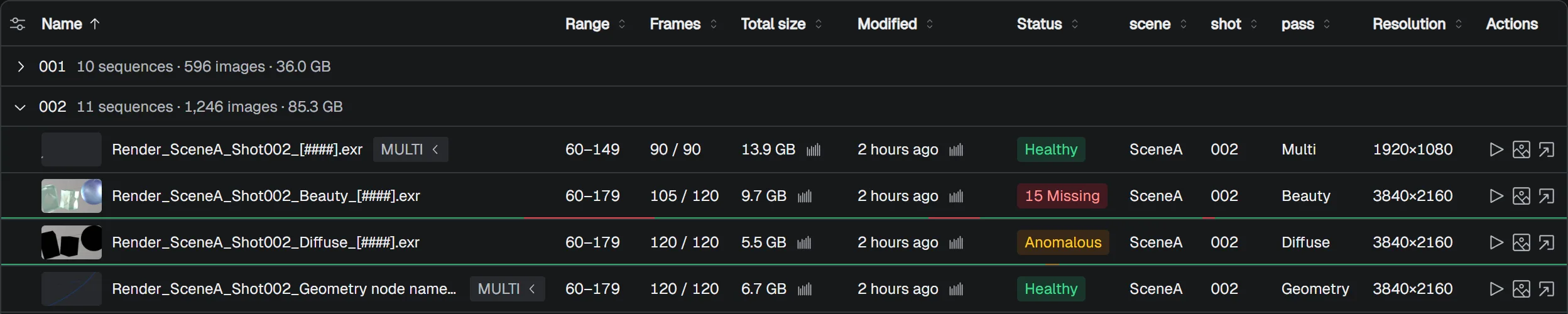
Choose a key under Group by at the right end of the filter bar to gather sequences that share a value. Each group header shows the sequence count, image count, and total size.
| Key | Groups by |
|---|---|
| Directory | The folder each sequence is in |
| Directory (Parent) | One folder up (seq010/sh020/comp groups as seq010/sh020) |
| Directory (Grandparent) | Two folders up (seq010 in the same example) |
| Extension | Extension, such as .exr or .tga |
| Status | Healthy, Updating, Missing, Anomalous |
| Columns you added | The value of a regex or metadata column |
Click a group header to collapse it. Hold Shift or Cmd/Ctrl while clicking to add the group’s sequences to the selection, or remove them if they’re all selected.
Adding and sorting columns
Configure columns shows and hides the built-in columns and lets you add frame metadata as columns.
Pick a key such as resolution or exif/ExposureTime, and type a display name in the field next to it if you like.
Added columns are typed (number, date, string, or boolean), so sorting and anomaly detection treat them correctly.
Click a column header to toggle ascending and descending order. Drag a header’s right edge to resize the column, or double-click it to fit the contents.
Columns are saved per project.
To reuse a column layout elsewhere, use Save as global from the menu at the top right of the dialog, or save it as a .seqlensconfig file and load it in the other project.
Selecting many at once
| Action | Selects |
|---|---|
| Click | That row only |
| Shift-click | Everything from the last selected row to this one |
| Cmd/Ctrl-click | Adds or removes that row |
| Drag from a row’s left edge or empty space | The rows you sweep over |
| Cmd/Ctrl+A | Every row shown (or none, if all were selected) |
| Cmd/Ctrl+Shift+A / Esc | Clears the selection |
Select > Select Healthy, Select Missing, and Select Anomalous select every sequence with that status. Select by Extension and Select by Metadata are available from the command palette.