Copy and hand off
Copy sequences to another drive for delivery or backup, verify them with checksums, keep an MHL, and handle moves and deletes safely.
Copying
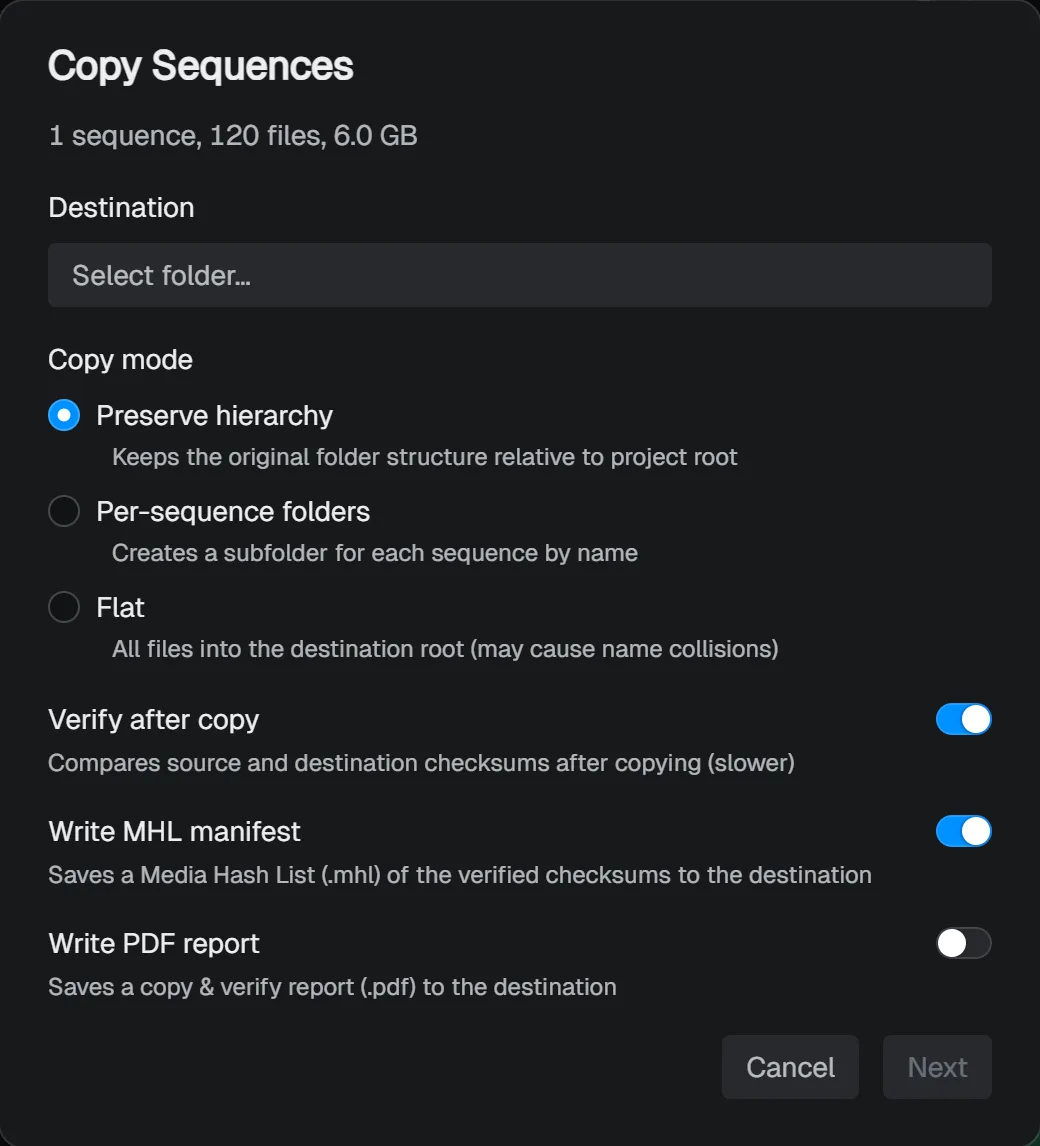
- Select the sequences in the table, right-click, and choose Copy…. With nothing selected, Edit > Copy Selection… copies every sequence currently shown.
- Under Destination, choose the folder to copy to.
- Under Copy mode, choose how folders are laid out at the destination (see the table below).
- To check the result, turn on Verify after copy.
- Click Copy. If you turned on Write MHL manifest or Write PDF report, click Next to go on to their settings.
| Copy mode | Layout at the destination |
|---|---|
| Preserve hierarchy | Recreates the paths relative to the project folder |
| Per-sequence folders | Puts each sequence in its own folder |
| Flat | Puts every file in one folder (watch out for name clashes) |
Copying never changes the source files.
Verifying the copy
With Verify after copy on, SeqLens compares checksums of the source and the destination once the copy finishes. It takes longer than a plain copy, but you know no file was damaged on the way. If any file doesn’t match, the job is marked as failed and the jobs window shows how many.
Verification also unlocks two ways to keep a record:
- Write MHL manifest: saves the verified checksums at the destination as a Media Hash List (
.mhl). Only files that passed verification are listed. - Write PDF report: saves a human-readable PDF of the copy and verification results at the destination.
The MHL settings are:
| Setting | What it does |
|---|---|
| Title | The file name when the whole copy gets one .mhl. Blank uses the destination folder name |
| User | The author recorded in the manifest. Blank uses your signed-in name, or your OS user name |
| Hash algorithms | xxHash64 is always written; add MD5 and SHA-1 if needed |
| Granularity | Per sequence (one per sequence, named after it) or Single manifest (one for the whole copy) |
| Path format | Paths relative to the .mhl folder, or absolute paths |
SeqLens writes the widely supported MHL v1.1 format. It’s a different format from ASC MHL 2.0, so check what the receiving side accepts.
You can also write an MHL for sequences you already have without copying them: right-click a row and choose Export > Export as MHL….
Following progress
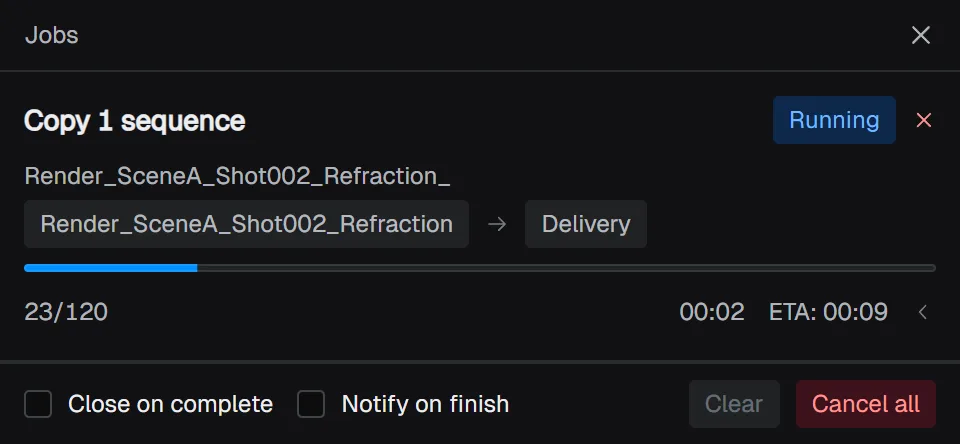
Long-running work such as copying, moving, and exporting runs as jobs in the background. Starting a job opens the jobs window, which shows progress, elapsed time, and an estimate of the time left. If you close it, View > Jobs brings it back.
If the destination already has a file with the same name, the job row asks what to do. Choose Skip or Overwrite, or Skip all / Overwrite all to apply the same answer to the rest.
Turn on Notify on complete at the bottom of the window to get a notification when the work is done. Quitting while jobs are running asks whether to keep them going or cancel. For copies that matter, wait for them to finish before you quit.
Moving and deleting
Moving, moving to the trash, and deleting permanently are also in the row’s right-click menu and the Edit menu. They can act on just the frames you selected in the Lens frame grid as well.
- Move…: choose the destination and layout the same way as for copying. While a move runs, the rescan button turns to a warning color.
- Move Selection to Trash: moves files to the OS trash, so you can restore them. Where the trash isn’t available, such as on some network drives, you choose per file whether to skip it or delete it permanently.
- Delete Selection Permanently…: deletes without the trash, after you confirm. Delete / Backspace opens the same confirmation.
CAUTION
Files deleted permanently can’t be restored. When in doubt, use Move Selection to Trash.
If moves or deletes leave empty folders behind, Edit > Clean Up Empty Folders… removes them. It runs without asking, and every folder it removes is listed in the job log.